
Understanding the calendar
How to use this page
Section titled “How to use this page”Open Calendar in the side menu (Calendar). Use it for a month-at-a-glance view of which days you traded and how each day performed, then drill into a single day for trades and notes.
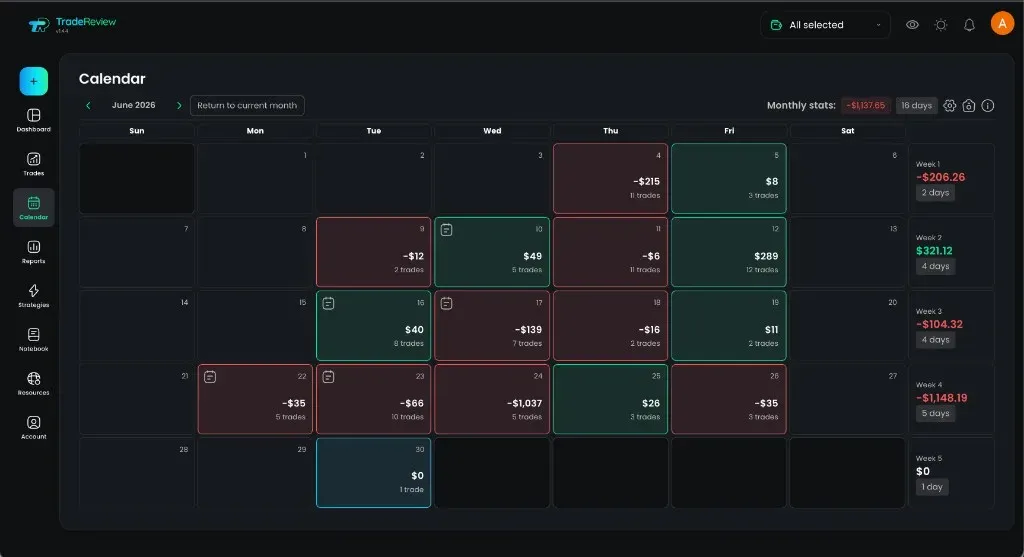
Month grid
Section titled “Month grid”Each day cell can show:
- Daily P&L
- Trade count
- Optionally win rate and shares/contracts (via the calendar display menu)
Use the toolbar to move months, jump to a specific month, or return to the current month. The header also shows monthly P&L and days traded. A weekly summary column sits beside the grid.
Day details
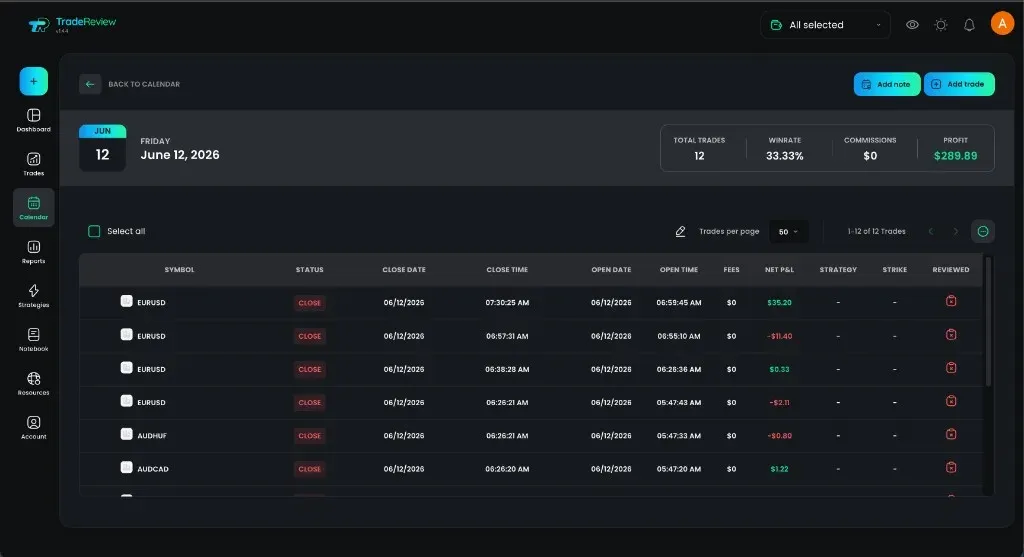
Section titled “Day details”Select a day to open day details:
- Net P&L summary for that day (trades, win rate, commissions, profit)
- List of trades for the day (open a trade for full review)
- Add or edit a day note
- Add a new trade from that day when needed
Days with no trades show an empty state until activity is logged or imported.
- Pair the calendar with filters (account / date) used elsewhere in the app so numbers match your dashboard.
- Use day notes for session reviews; use trade notes for individual setups — Folders and notes if you prefer a longer journal.