
Interactive Brokers — How to set up broker auto sync
Automatically import trades from your Interactive Brokers (IBKR) account into TradeReview. The connection uses IBKR’s Flex Web Service: a read-only token plus two Flex Queries that you create once in IBKR Client Portal. TradeReview never sees your IBKR password and cannot place trades or move money.
Prefer uploading files instead? See Import Interactive Brokers trades.
Prerequisites
Section titled “Prerequisites”- A TradeReview account with an active Pro subscription
- An Interactive Brokers account (live or paper) with access to Client Portal
- About 10 minutes for the one-time setup below
You will create three things in IBKR and paste them into TradeReview:
| What | Used for |
|---|---|
| Flex Web Service token | Lets TradeReview download your Flex reports (read-only) |
| Activity Flex Query | Your trade history, finalized by IBKR at the end of each day |
| Trade Confirmation Flex Query | Today’s executions, available within minutes of each fill |
Step 1: Create the Activity Flex Query
Section titled “Step 1: Create the Activity Flex Query”Step 1.1: Log in to IBKR Client Portal and open Performance & Reports → Flex Queries.
You will work with three panels on this page: Activity Flex Query, Trade Confirmation Flex Query, and Flex Web Service Configuration.
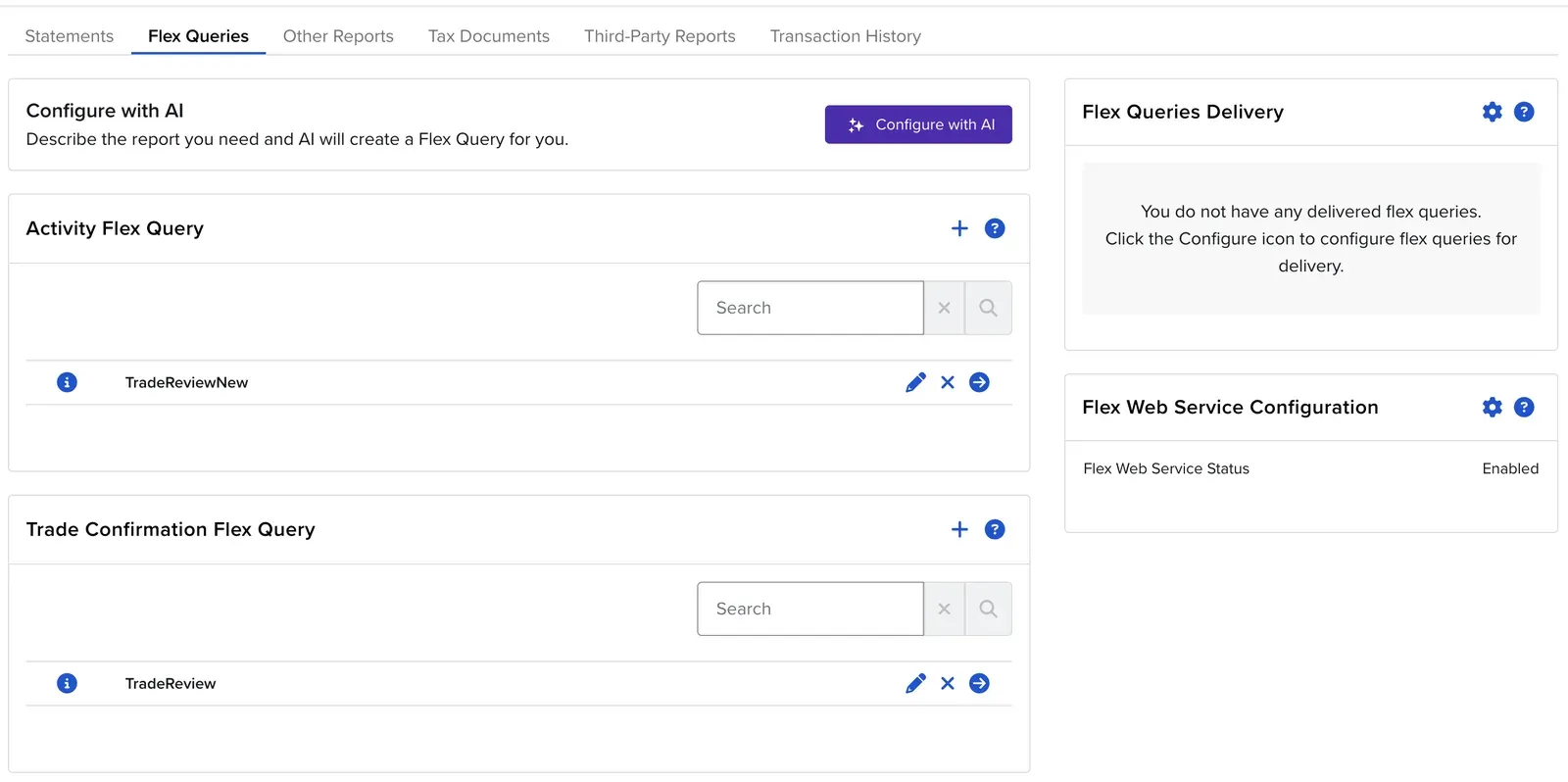
Step 1.2: Click the + in the Activity Flex Query panel.
Step 1.3: Enter a Query Name, for example TradeReview Activity.
Step 1.4: Under Sections, click Trades. In the pop-up:
- Under Options, select Execution only. Leave Symbol Summary, Asset Class, Order, Closed Lots, and Wash Sales unselected.
- Tick Select All so every field is included.
- Scroll down and click Save.
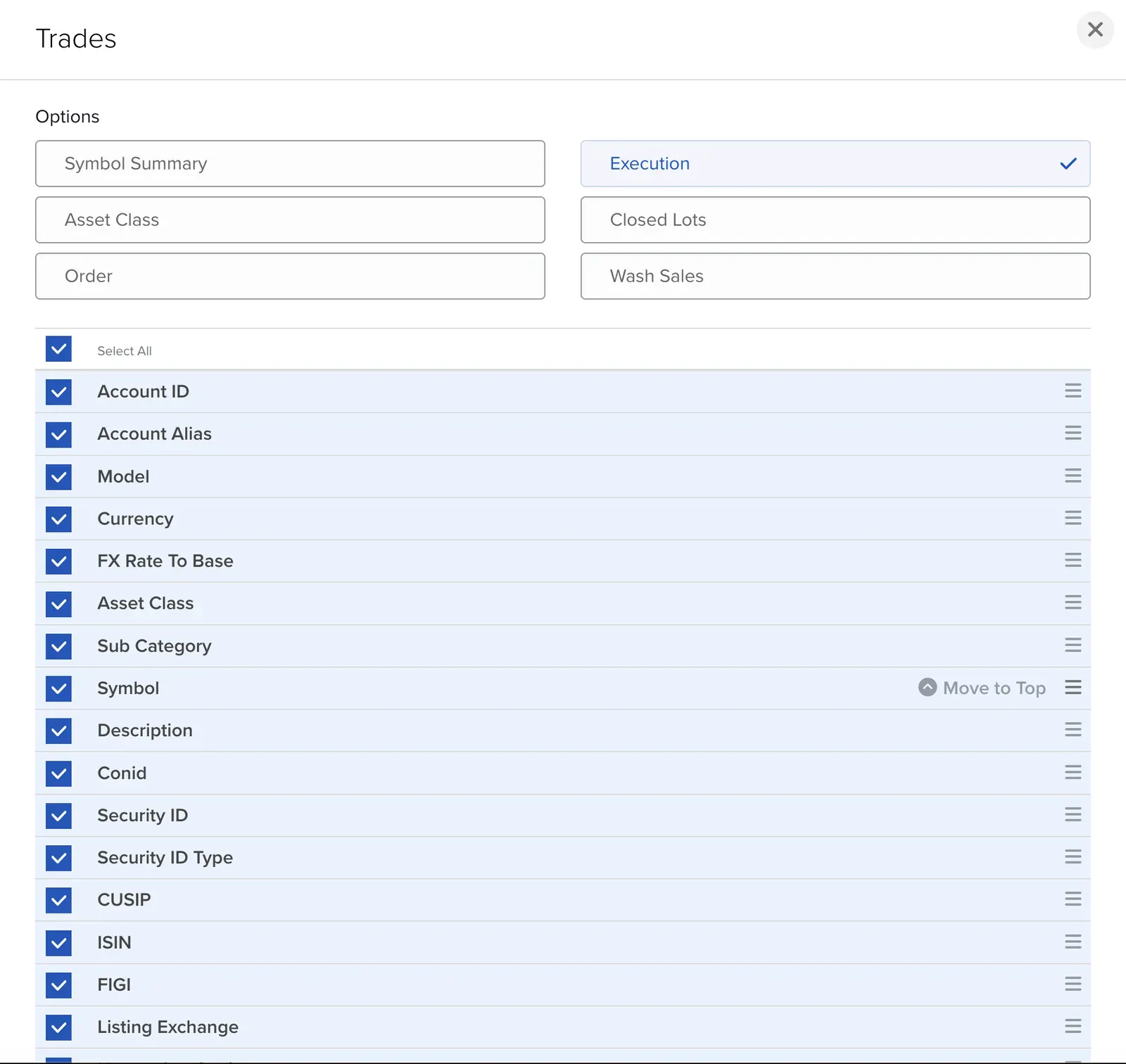
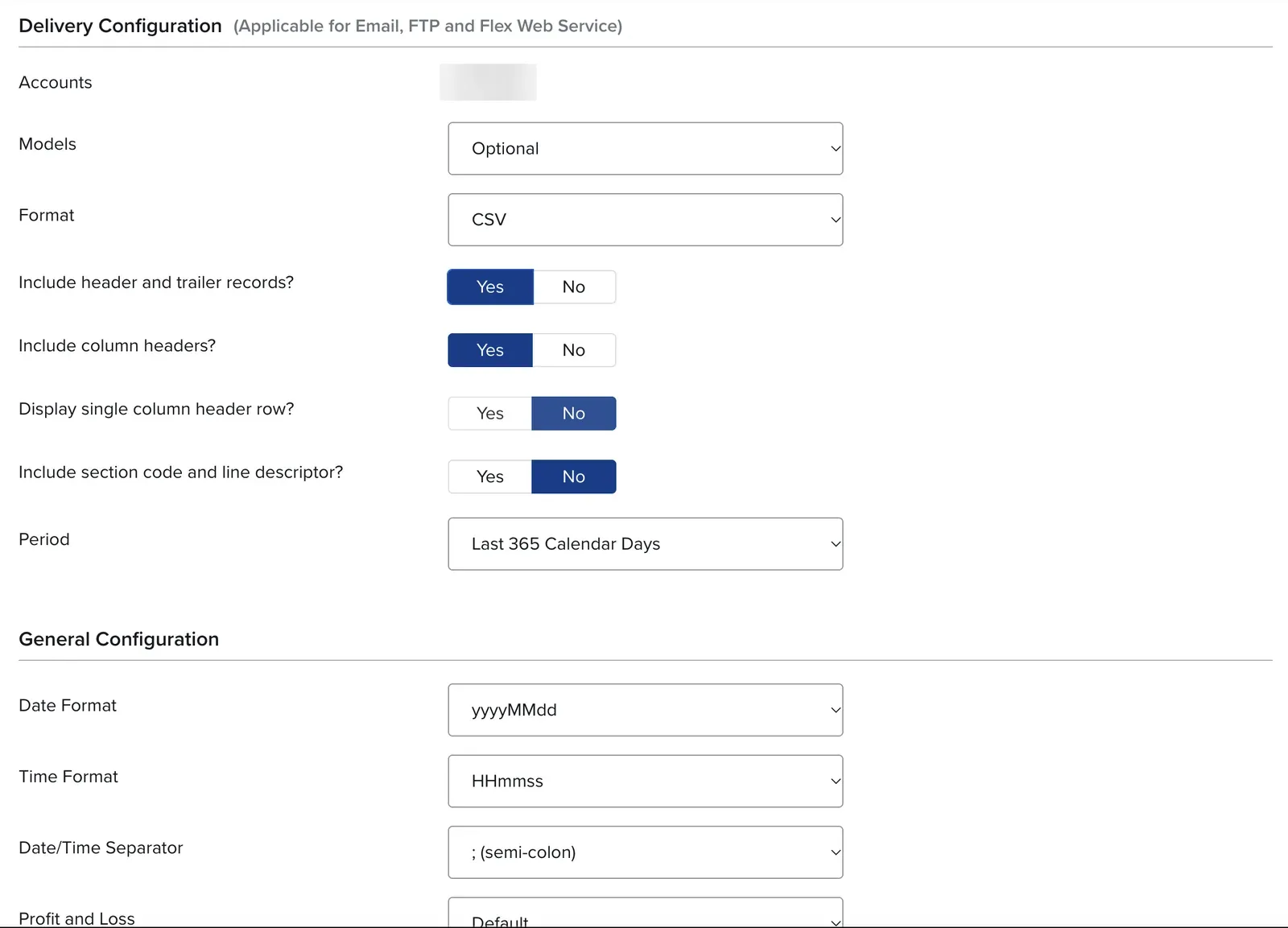
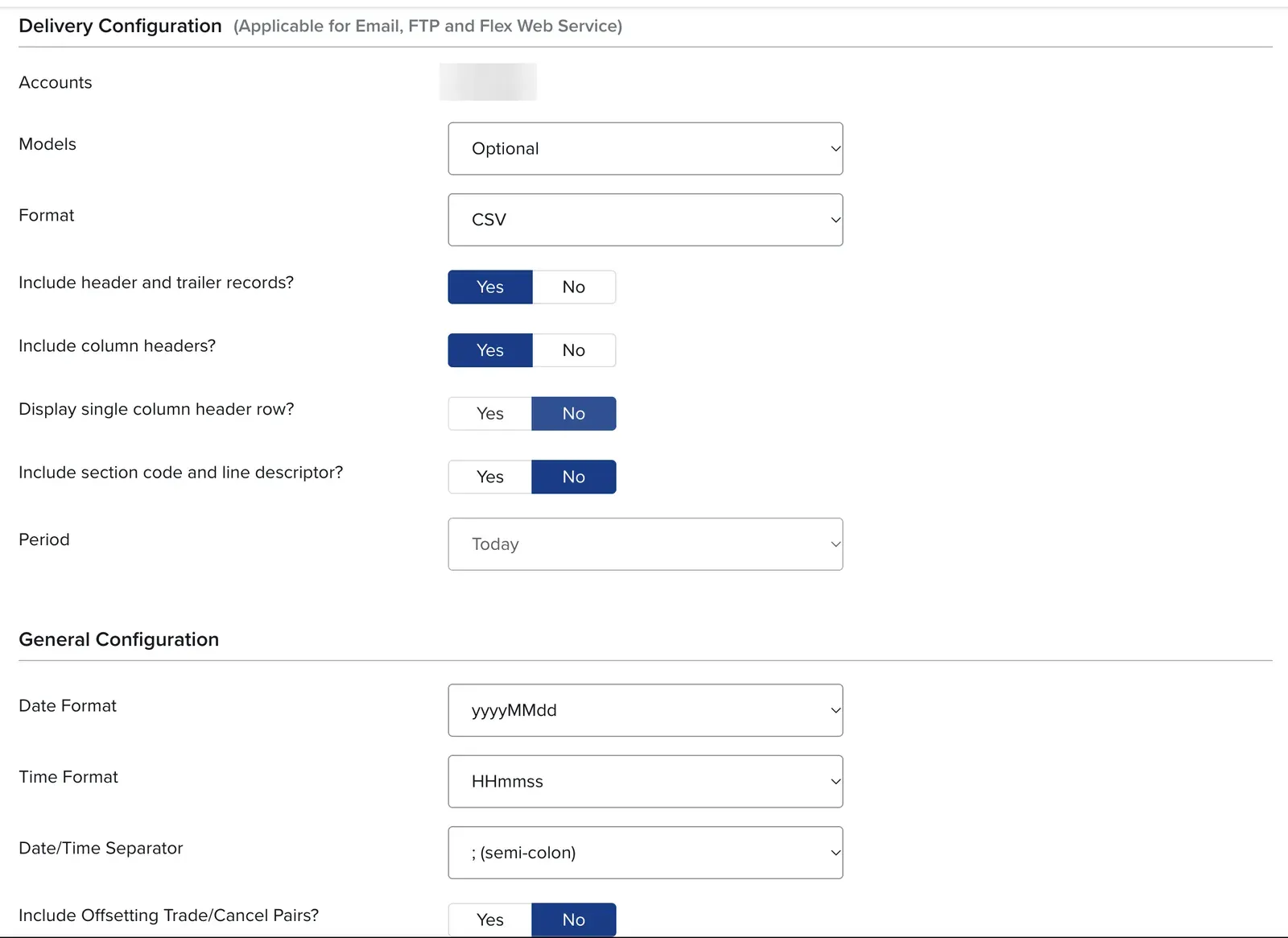
Step 1.5: Scroll down to Delivery Configuration and General Configuration and set:
| Setting | Value |
|---|---|
| Accounts | Every account you want to sync |
| Format | CSV |
| Include header and trailer records? | Yes |
| Include column headers? | Yes |
| Display single column header row? | No |
| Include section code and line descriptor? | No |
| Period | Last 365 Calendar Days |
| Date Format | yyyyMMdd |
| Time Format | HHmmss |
| Date/Time Separator | ; (semi-colon) |
Leave the remaining settings at their defaults.
Step 1.6: Click Continue, review the query, then click Create.
The period controls how much history TradeReview imports on first connect. Last 365 Calendar Days is the longest period IBKR offers.
Step 2: Create the Trade Confirmation Flex Query
Section titled “Step 2: Create the Trade Confirmation Flex Query”Step 2.1: Back on the Flex Queries page, click the + in the Trade Confirmation Flex Query panel.
Step 2.2: Enter a Query Name, for example TradeReview Today.
Step 2.3: Under Sections, click Trade Confirmation. In the pop-up, select the Execution option only, tick Select All, and click Save.
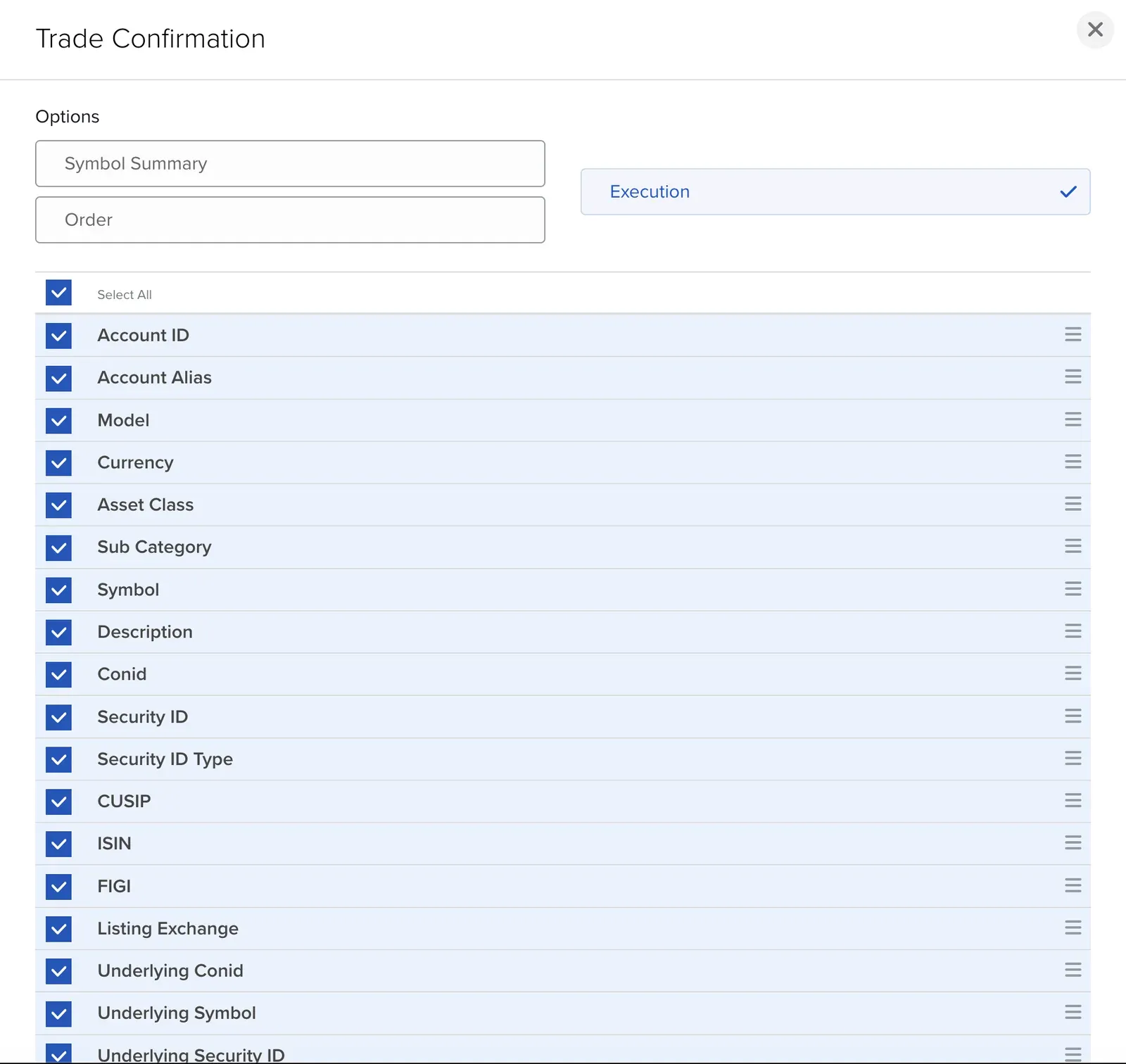
Step 2.4: Use the same Delivery Configuration and General Configuration as the Activity query, with one difference: set Period to Today. Leave Include Offsetting Trade/Cancel Pairs? at No.
Step 2.5: Click Continue, then Create.
Step 3: Copy both Query IDs
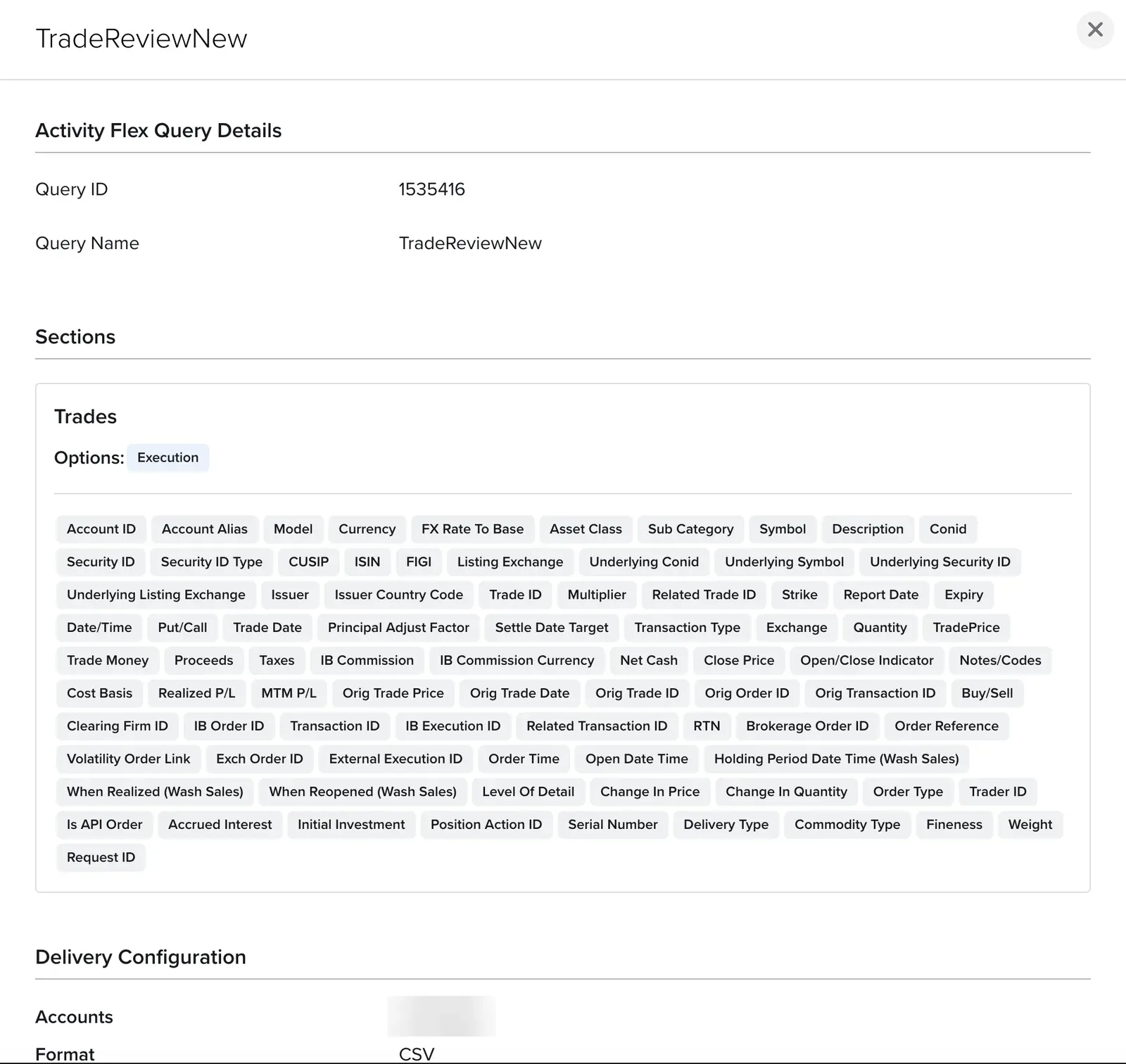
Section titled “Step 3: Copy both Query IDs”On the Flex Queries page, click the i icon next to each query name. The details window shows the Query ID, a number such as 1535416.
Note which ID belongs to the Activity query and which to the Trade Confirmation query. TradeReview needs both.
Step 4: Generate a Flex Web Service token
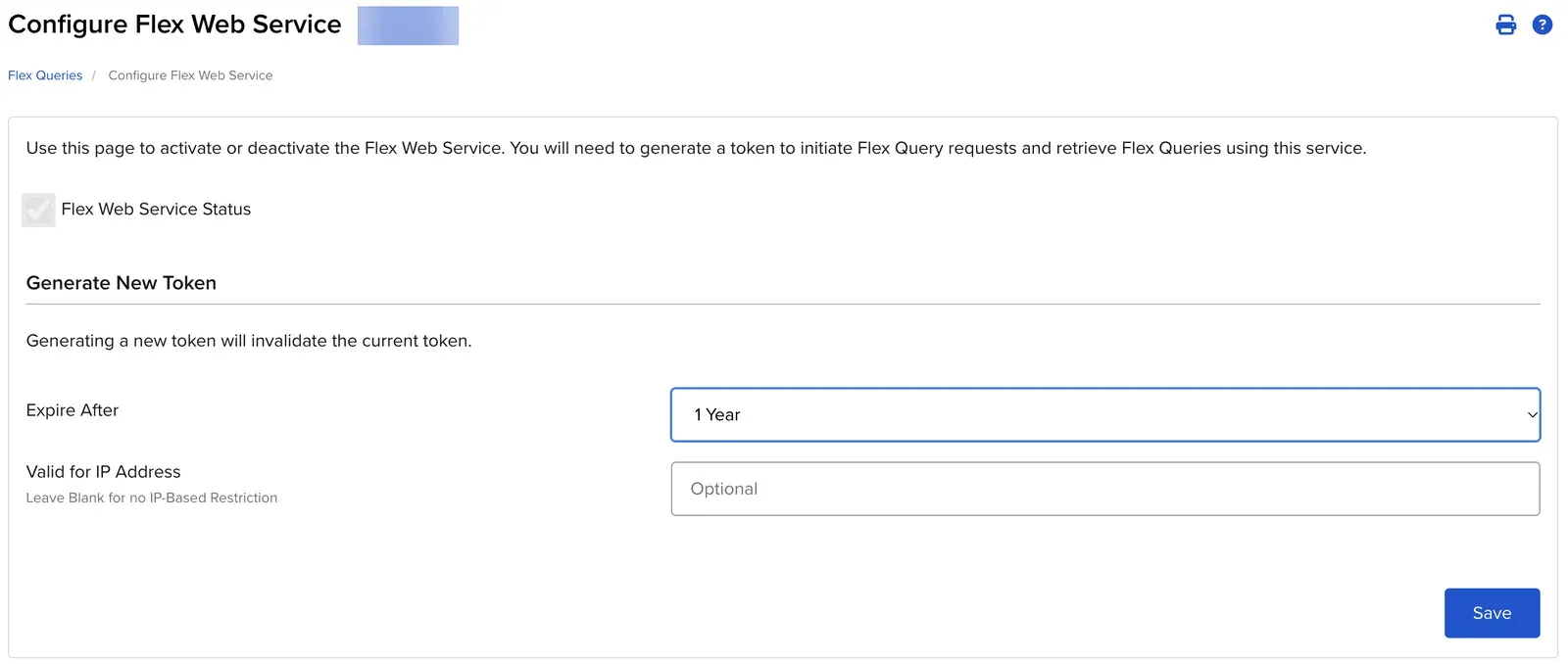
Section titled “Step 4: Generate a Flex Web Service token”Step 4.1: In the Flex Web Service Configuration panel, click the gear icon. This opens Configure Flex Web Service.
Step 4.2: Make sure Flex Web Service Status is ticked.
Step 4.3: Under Generate New Token:
- Expire After: choose 1 Year, the longest option
- Valid for IP Address: leave it blank. TradeReview syncs from cloud servers whose IP addresses change, so a token restricted to one IP stops working.
Step 4.4: Click Save, then copy the token IBKR shows you.
Treat the token like a password: anyone with the token and your Query IDs can download these reports. Generating a new token invalidates the previous one, so if you regenerate it later, update it in TradeReview with Fix on the Broker Sync page.
Step 5: Connect Interactive Brokers in TradeReview
Section titled “Step 5: Connect Interactive Brokers in TradeReview”Step 1: Open the Broker Sync page in TradeReview, or click the + button in the sidebar and choose Broker Sync.
Step 2: Click Add new broker.
Step 3: Select Interactive Brokers from the broker list.
Step 4: Enter:
- Flex Token: the token from Step 4
- Activity Flex Query ID: the ID of your Activity query
- Trade Confirmation Flex Query ID: the ID of your Trade Confirmation query
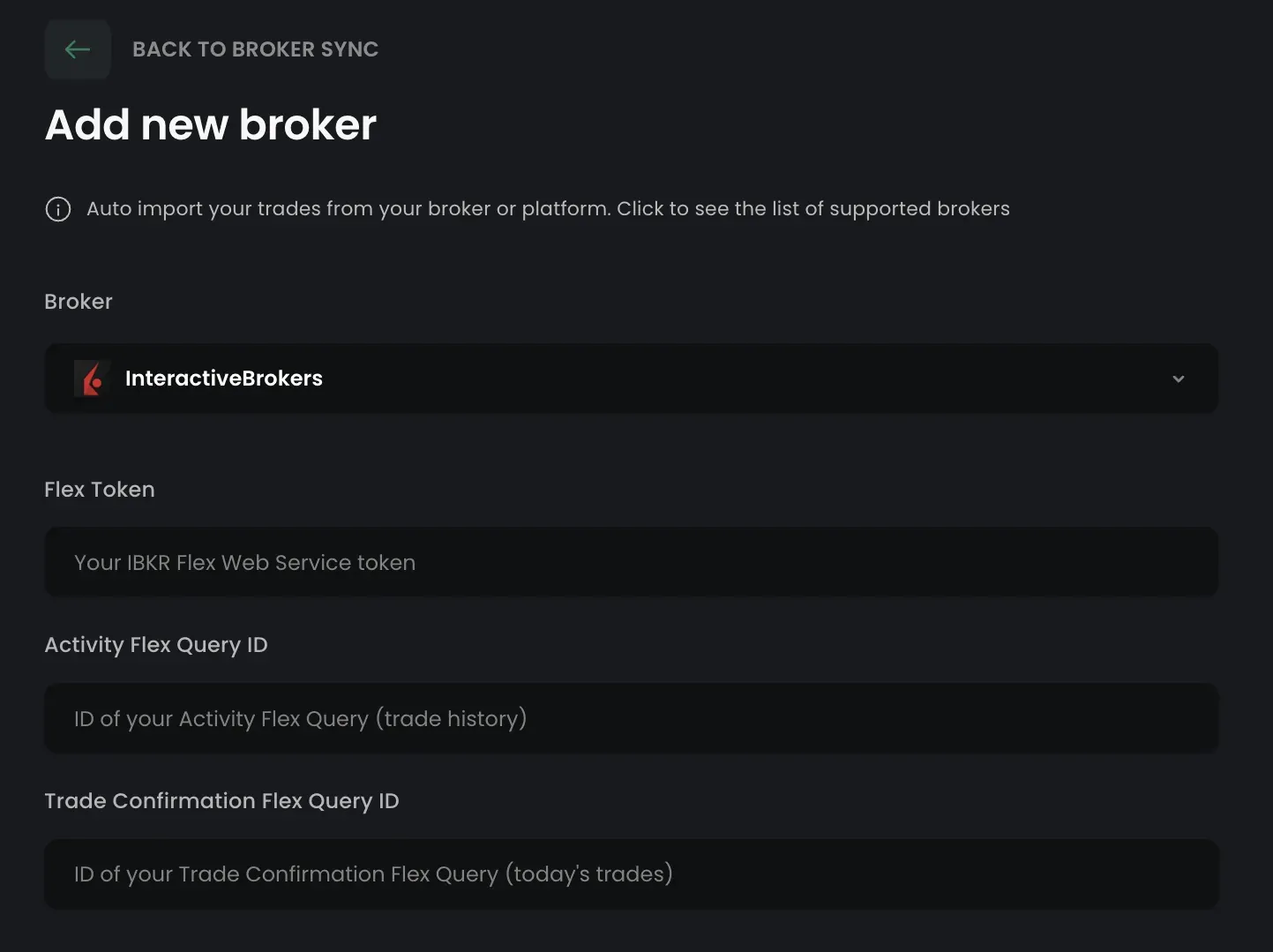
Step 5: Click Add broker. TradeReview runs both queries once to check them, which can take up to a minute while IBKR generates the reports, and then starts the initial sync.
If your queries cover several IBKR accounts, TradeReview links each account separately, for example IBKR U1234567. Paper accounts (IDs starting with DU) are marked as demo automatically. There is no Live/Demo switch to set.
How sync works
Section titled “How sync works”- Scheduled sync: TradeReview syncs Interactive Brokers every hour.
- History: On first connect, TradeReview imports everything in your Activity query’s period, up to 365 days.
- Today’s trades: The Trade Confirmation query brings in today’s fills on the next hourly sync, before IBKR finalizes the day.
- End of day: Once IBKR processes the day, the Activity report replaces the same-day data with final commissions, fees, and FX rates. Trades are updated in place, not duplicated.
- Your edits are kept: Notes, tags, strategies, screenshots, and stop loss / take profit you add in TradeReview stay on the trade when it is updated by a sync.
Manage your connection
Section titled “Manage your connection”On the Broker Sync page you can:
- View Last sync and Next sync for each linked account
- Click Resync now to trigger a manual sync (available once every 15 minutes)
- Click Fix if the connection status shows Broken, for example after your Flex token expires, and enter a new token
To disconnect TradeReview on the IBKR side at any time, turn off the Flex Web Service or generate a new token. The old token stops working immediately.
Troubleshooting
Section titled “Troubleshooting”| What you see | What to do |
|---|---|
| Broker temporarily unavailable | IBKR could not generate the report right now. This is common during IBKR’s overnight and weekend maintenance. Try again in a few minutes; scheduled syncs retry on their own. |
| Connection failed right after connecting | Check the token and both Query IDs. Make sure the Flex Web Service is turned on and the token has no IP restriction. |
| ”The Flex Query returns XML” | Edit the query and change Format to CSV. |
| ”Query IDs look swapped” | Enter the Activity query ID in Activity Flex Query ID and the Trade Confirmation query ID in Trade Confirmation Flex Query ID. |
| ”Returned no IBKR account” | In the Activity query, set Include header and trailer records? to Yes, or make sure Account ID is ticked in the Trades section. |
| Status is Broken | Usually the Flex token expired. Generate a new token in IBKR, then click Fix and paste it. |
| Today’s trades are missing | They appear on the next hourly sync after the fill. Make sure the Trade Confirmation query’s period is Today. |
| Older trades are missing | Set the Activity query’s period to Last 365 Calendar Days. For history older than a year, use file import. |
Supported assets
Section titled “Supported assets”Stocks, Options, Futures, and Forex traded through Interactive Brokers.