
Connect Claude, ChatGPT and other AI assistants
Connect an AI assistant such as Claude or ChatGPT to your TradeReview journal, then ask it about your trading in plain language: “Review my trading last week” or “Which setup loses me the most money?”. The assistant reads your journal through TradeReview’s MCP server (Model Context Protocol), answers with your real numbers and links to the trades it mentions.
Access is read-only. An assistant can read your trades and stats, but it can’t change your journal, place or cancel trades, or reach your broker account.
Prerequisites
Section titled “Prerequisites”- A TradeReview Basic or Pro plan. On the Free plan, Account → AI assistants shows what the feature does and how to upgrade — see Membership and billing.
- An AI app that supports remote MCP servers (custom connectors): Claude, ChatGPT, Claude Code, Cursor, VS Code and others.
If you don’t see AI assistants under Account, the feature isn’t turned on for your account yet.
Find your server URL
Section titled “Find your server URL”Open Account → AI assistants (AI assistants). The page shows the TradeReview server URL with a Copy button and step-by-step instructions for each app:
https://mcp.tradereview.app/mcp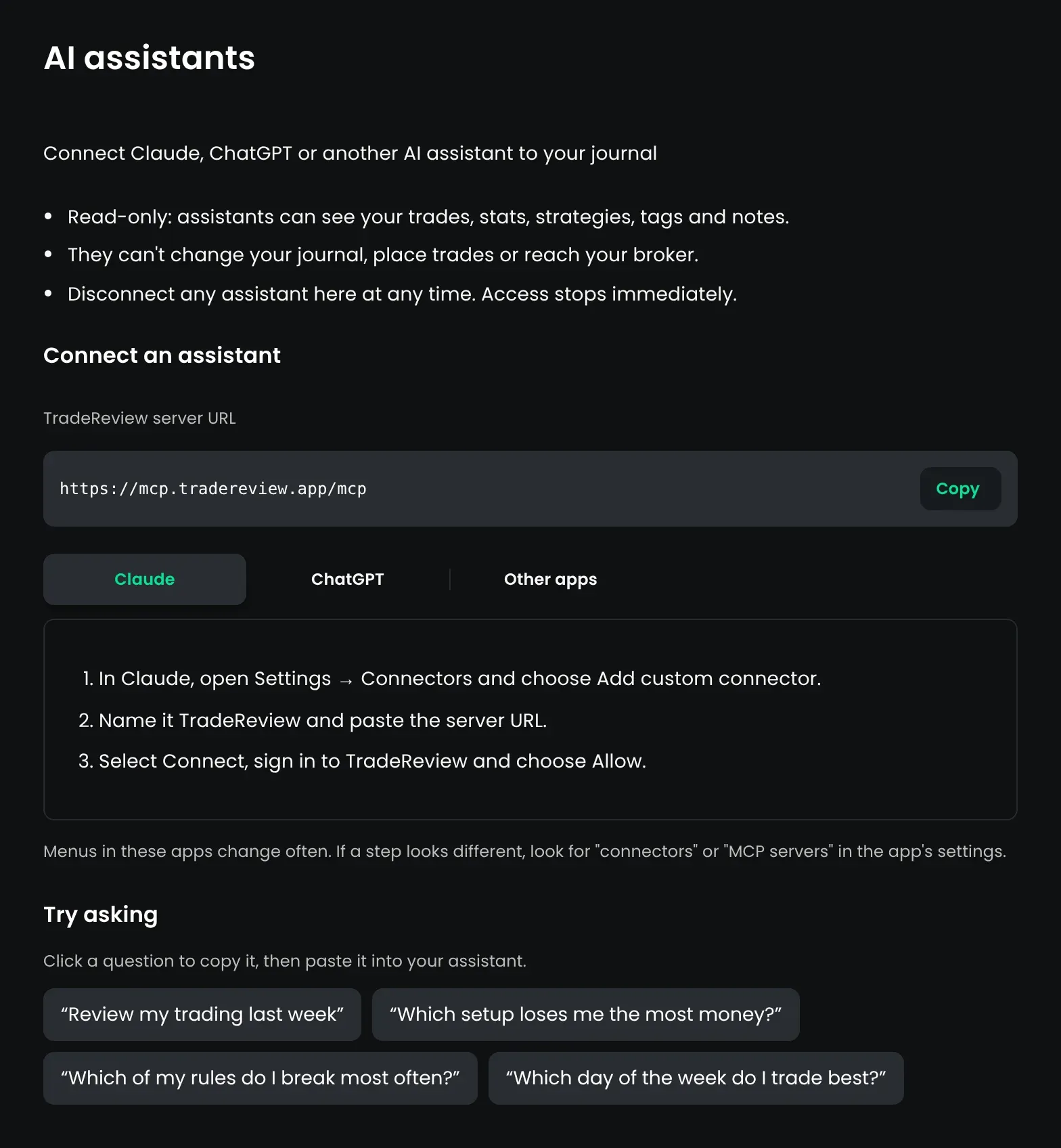
You never paste a password or an API key into the AI app. It sends you to TradeReview to sign in and approve access.
Connect Claude
Section titled “Connect Claude”Step 1: In Claude, open Settings → Connectors (on claude.ai this is also under Customize → Connectors) and choose Add custom connector.
Step 2: Name it TradeReview and paste the server URL. Leave the advanced settings empty.
Step 3: Click Add, then Connect. TradeReview opens in your browser.
Step 4: Sign in to TradeReview if you aren’t already, check the account shown on the page, and click Allow (see Approve access below). You return to Claude.
Step 5: In a chat, make sure the TradeReview connector is turned on (Claude’s + menu → Connectors), then ask a question about your trading.
Claude’s free plan allows one custom connector; paid Claude plans allow more. On Claude Team and Enterprise, an organization owner adds the connector first, then each member clicks Connect.
Connect ChatGPT
Section titled “Connect ChatGPT”Step 1: In ChatGPT settings, turn on Developer mode. OpenAI only offers custom connectors on some ChatGPT plans, and the location of this switch changes between versions.
Step 2: Add a new custom app or connector, name it TradeReview, paste the server URL and choose OAuth authentication.
Step 3: Connect, sign in to TradeReview and click Allow.
Step 4: In a new chat, turn on the TradeReview connector from the tools menu and ask your question.
Connect Claude Code, Cursor, VS Code and other apps
Section titled “Connect Claude Code, Cursor, VS Code and other apps”Any app that supports remote MCP servers can connect with the server URL. On the AI assistants page, open the Other apps tab to copy the exact command or configuration.
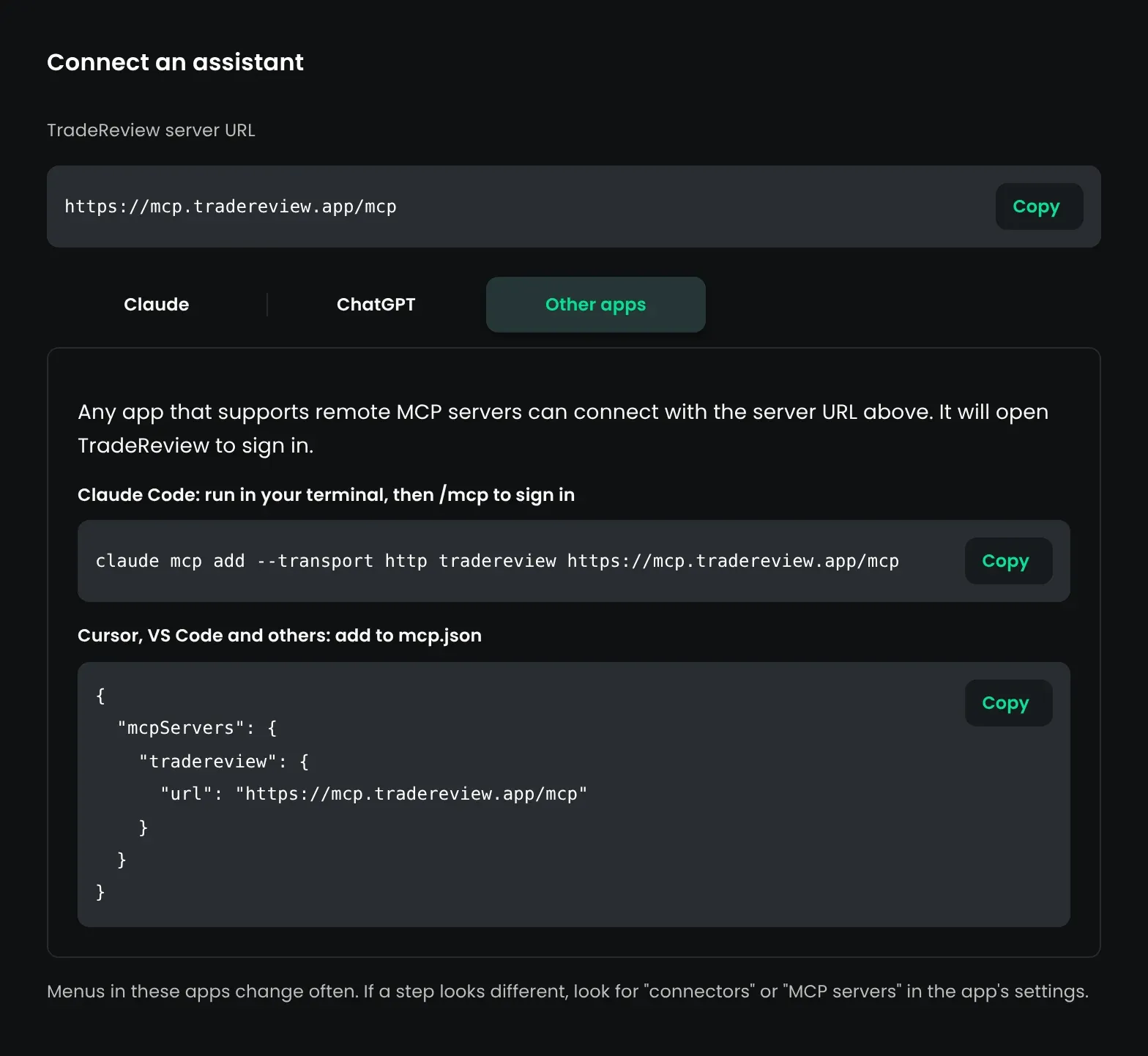
Claude Code: run this in your terminal, then type /mcp in Claude Code to sign in:
claude mcp add --transport http tradereview https://mcp.tradereview.app/mcpCursor, VS Code and others: add TradeReview to your mcp.json, then start the server from the app’s MCP settings to sign in:
{ "mcpServers": { "tradereview": { "url": "https://mcp.tradereview.app/mcp" } }}Approve access
Section titled “Approve access”When you connect an assistant, TradeReview shows a consent page before anything is shared:
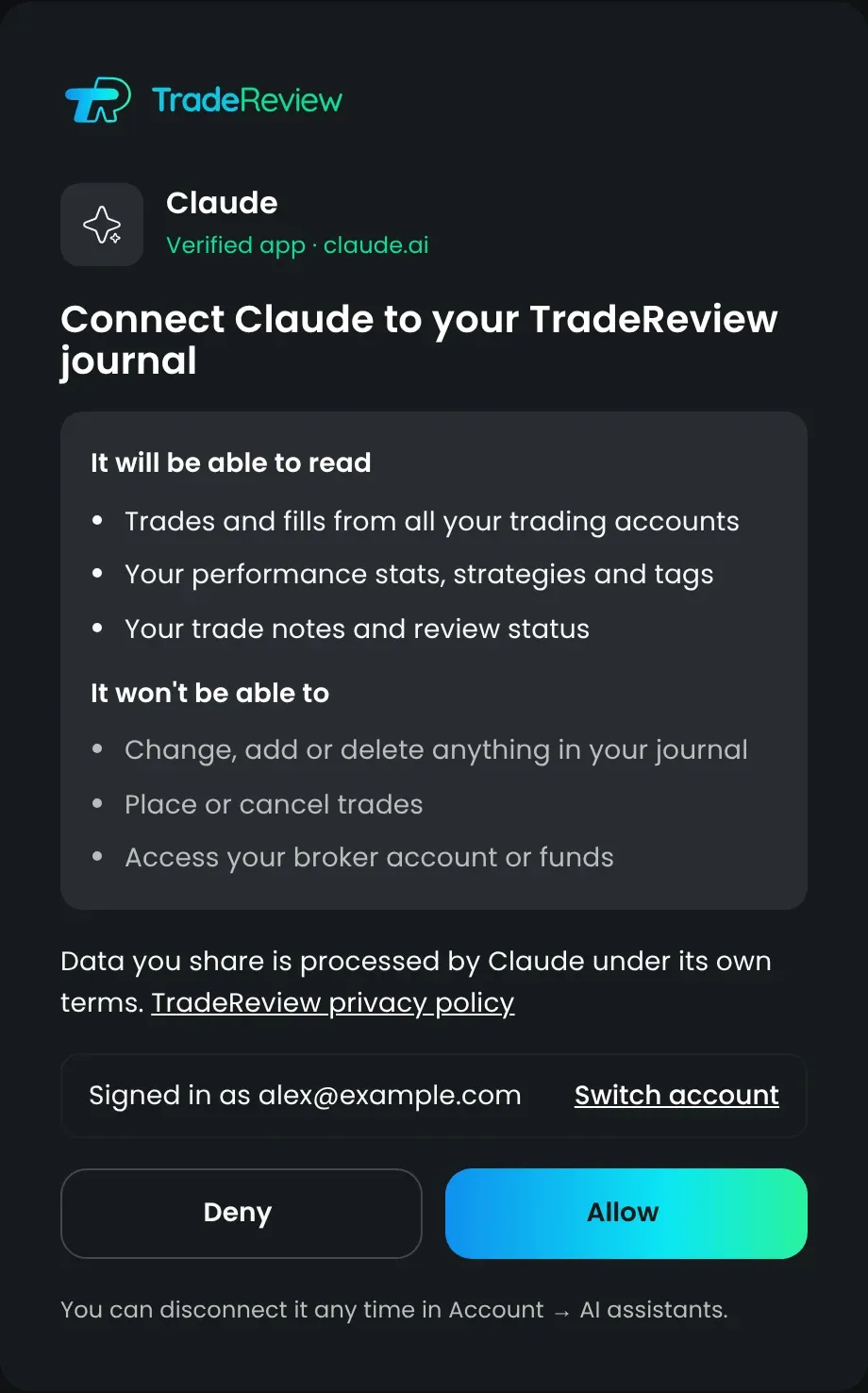
- Verified app means the request comes from a well-known AI app (for example claude.ai or chatgpt.com).
- Unverified app means the app registered itself and TradeReview can’t confirm who it is. The page shows its web address in the title. Only click Allow if you started the connection yourself from that app a moment ago.
- Signed in as shows which TradeReview account will be shared. If it’s the wrong one, click Switch account, sign in with the right account and you return to the same request.
- Allow connects the assistant. Deny sends you back without connecting.
Connection requests are valid for a few minutes. If the page says the link has expired, go back to your AI app and connect TradeReview again.
What an assistant can see
Section titled “What an assistant can see”Once connected, the assistant can look up:
- Trades from all your trading accounts, with average entry and exit price, stop and target, P&L, fees, R:R, hold time, number of fills and a link to each trade in TradeReview
- Performance stats: net P&L, win rate, average win and loss, profit factor and more, by strategy, tag, symbol, weekday or month
- Strategies, tags and rules: your strategy checklists, how often you follow each rule and which trades missed one
- Notes and review status: your trade notes and which trades you haven’t reviewed yet
It can’t change, add or delete anything in your journal, place or cancel trades, or access your broker account or funds.
Assistants only read what they need for your question. If you don’t mention dates, they look at the last 90 days. Name a period (“in March”, “this year”, “since 1 January”) to cover a different range.
Data you share is processed by the AI app under its own terms. TradeReview’s privacy policy covers your journal.
What to ask
Section titled “What to ask”Start with a question about your own trading:
- “Review my trading last week.”
- “Which setup loses me the most money?”
- “Which of my rules do I break most often, and what does it cost me?”
- “Which day of the week do I trade best?”
- “Compare my strategies this year.”
- “Show my five worst trades this month and what they have in common.”
Apps that support MCP prompts, such as Claude and Claude Code, also list three ready-made TradeReview prompts: Weekly trading review, Rule-break audit and Compare strategies.
The more of your journal you fill in — strategies and rules, tags and notes — the more specific the answers get.
Manage connected assistants
Section titled “Manage connected assistants”Account → AI assistants lists every connected assistant with the date it was connected and last used.
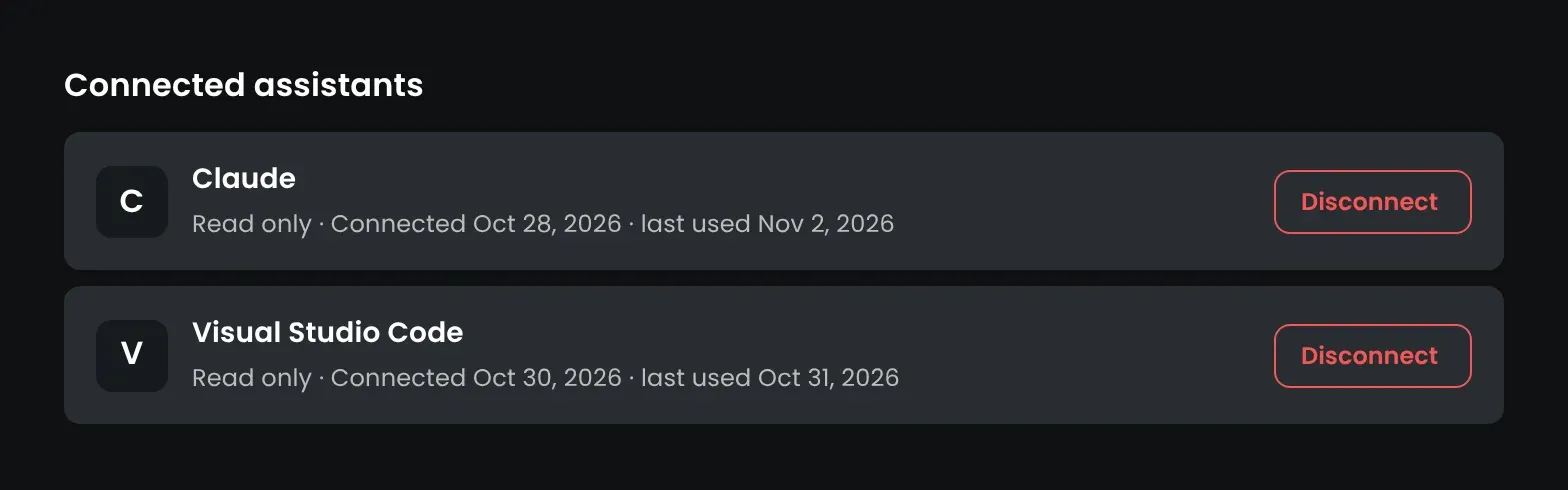
To remove access, click Disconnect next to the assistant and confirm. Access stops immediately. You can connect it again later.
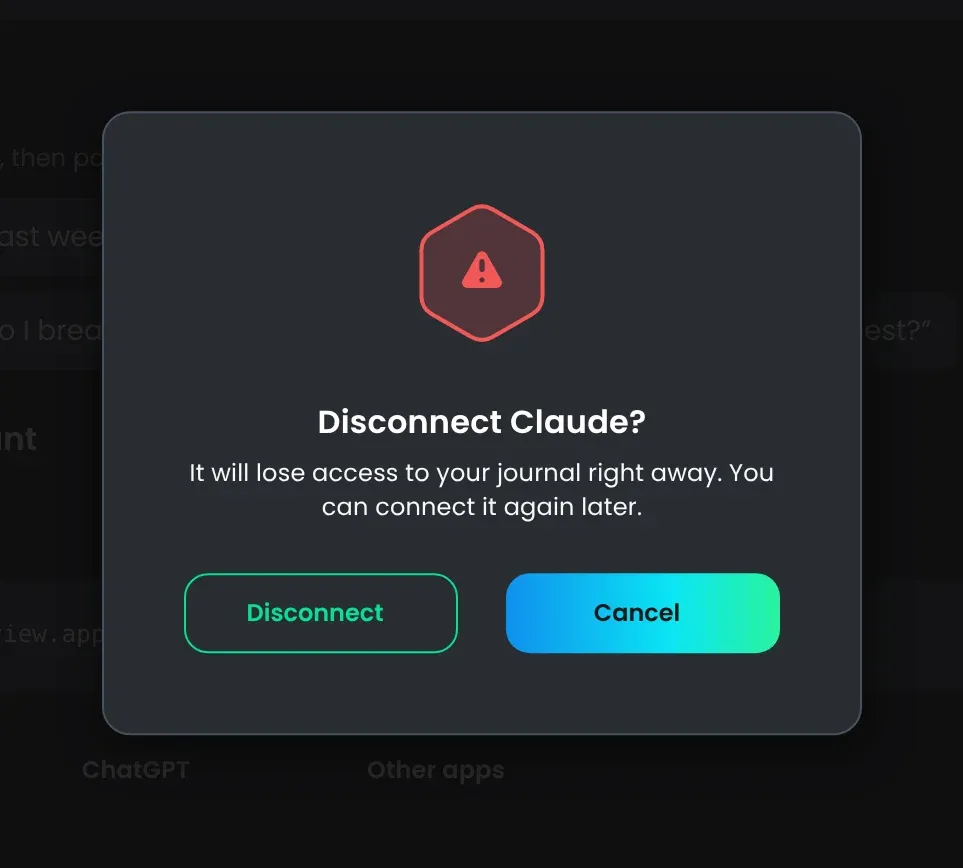
Removing the connector in the AI app doesn’t always remove it here. To be sure access is gone, disconnect it on this page too.
Limits
Section titled “Limits”| Limit | Value |
|---|---|
| Connected assistants per TradeReview account | 10 |
| Requests per minute, per connection | 60 |
| Lookups (tool calls) per day, per connection | 1,000 |
| Stays connected without use | 60 days |
One question usually takes a few lookups. If an assistant isn’t used for 60 days, connect it again.
Troubleshooting
Section titled “Troubleshooting”| What you see | What to do |
|---|---|
| ”This link has expired” | Connection requests last a few minutes. Go back to your AI app and connect TradeReview again. |
| ”AI assistants aren’t available for your account yet” | The feature isn’t turned on for your account yet. Contact support. |
| The consent page asks you to upgrade | Connecting AI assistants needs a Basic or Pro plan. See Membership and billing. |
| The assistant says it needs a paid TradeReview plan | Your plan changed. Upgrade, or disconnect the assistant. |
| The wrong account’s trades appear | Disconnect the assistant on the AI assistants page, connect again and use Switch account on the consent page. |
| The assistant can’t see TradeReview in a chat | Turn the TradeReview connector on for that chat in the AI app’s tools or connectors menu. |
| The assistant says the daily limit is reached | Each connection can make 1,000 lookups a day. The limit resets at midnight UTC. |
| Answers only cover the last 90 days | Name the period in your question, for example “in 2025”. |