
Sync history — see what each broker sync imported
Every time TradeReview syncs a broker account, the sync is recorded. Use the sync history to check that your latest trades came in, see which trades a sync imported, and find syncs that failed.
Prerequisites
Section titled “Prerequisites”- A TradeReview account with an active Pro subscription to sync. Past syncs stay visible if you downgrade.
- At least one broker account connected with auto sync. See Supported brokerage integrations.
Open the sync history
Section titled “Open the sync history”Step 1: Open the Broker Sync page.
Step 2: Click Sync history next to the number of connected accounts. On a phone, tap the history icon at the top of the page.
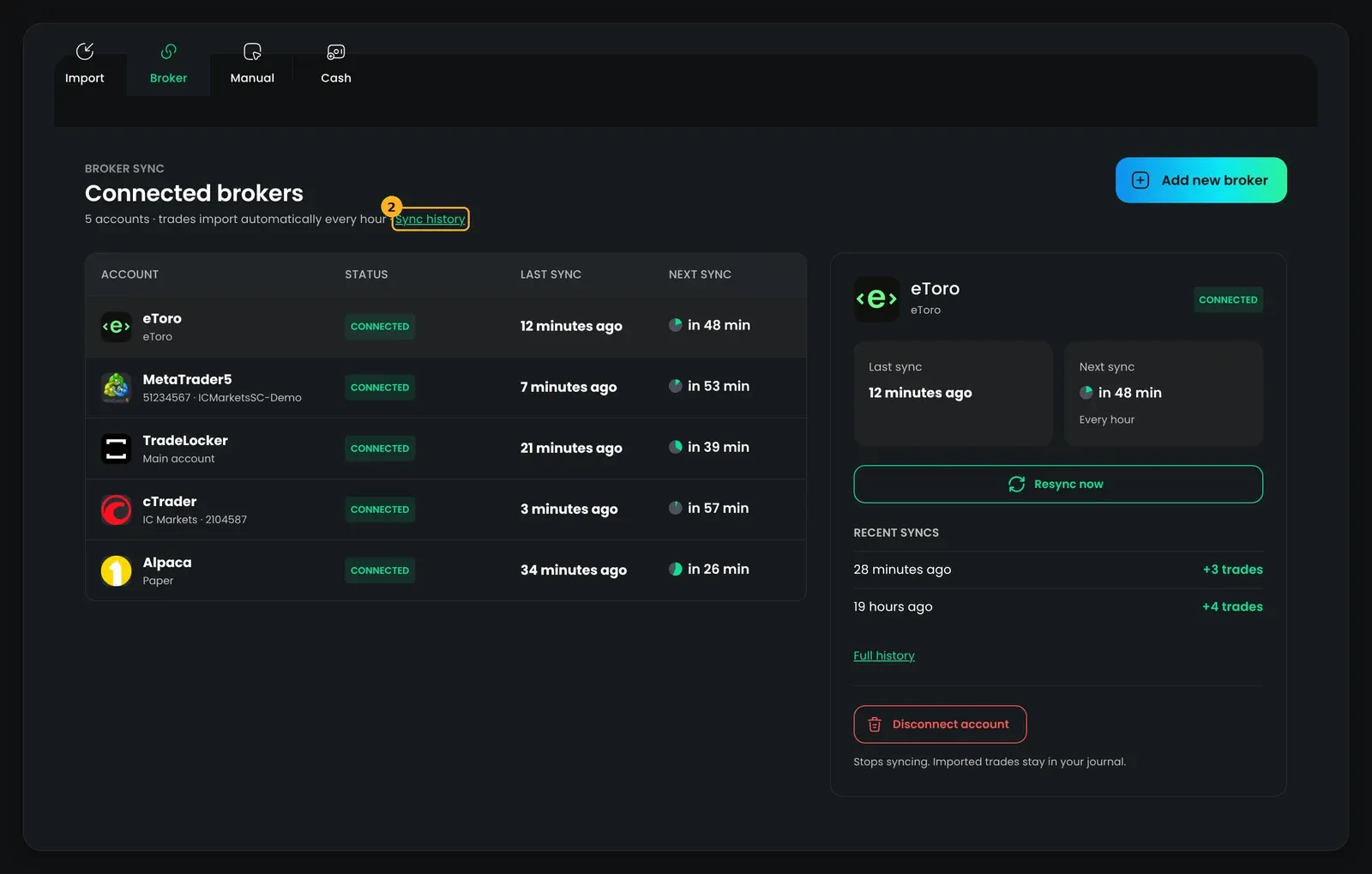
To see the history of one account only, select the account on the Broker Sync page and click Full history under Recent syncs.
You can also open the Sync history page directly.
Recent syncs on each account
Section titled “Recent syncs on each account”On the Broker Sync page, each account shows its Recent syncs: when each sync ran and what it did (for example, +3 trades, Up to date, or Failed). On desktop you see the last 5 syncs.
On a phone or tablet, open the account and switch to the History tab. It also shows what started each sync: First sync, Auto-sync, Manual resync, or Catch-up. Tap Show older syncs to load more. A number on the tab shows how many syncs failed.
What the sync history shows
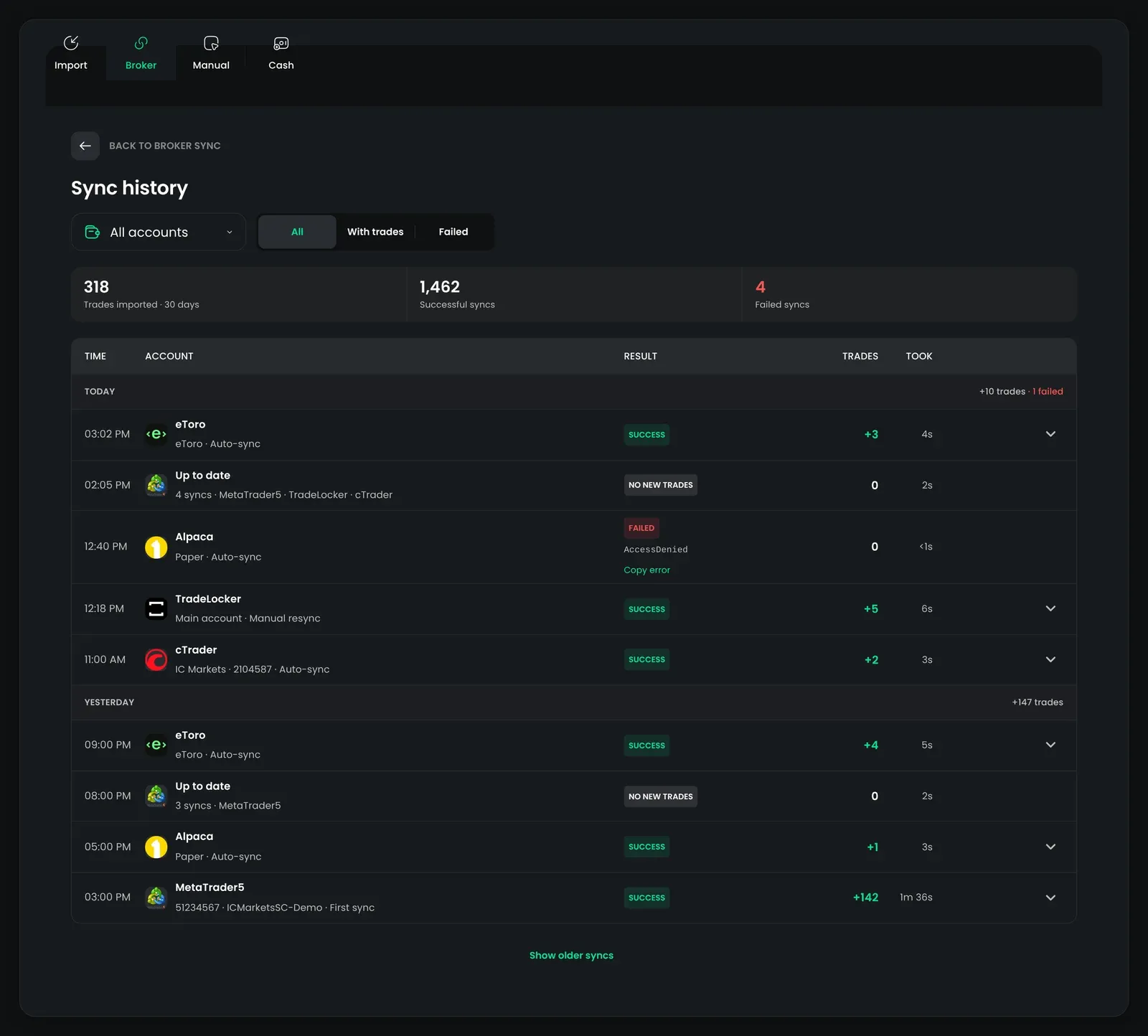
Section titled “What the sync history shows”At the top, three totals cover the last 30 days:
- Trades imported
- Successful syncs
- Failed syncs
Below, syncs are listed newest first and grouped by day (Today, Yesterday, then the date). Each day shows how many trades came in and how many syncs failed.
Each row shows:
| Column | What it means |
|---|---|
| Time | When the sync started |
| Account | The broker, the account, and what started the sync |
| Result | Success, Failed, or Running |
| Trades | How many new trades the sync imported |
| Took | How long the sync took |
Syncs in a row that found nothing new are folded into one Up to date row that shows how many syncs it covers (for example, 6 syncs). This keeps hourly syncs from hiding the ones that imported trades or failed. The first sync of an account always gets its own row.
Filter the list
Section titled “Filter the list”- Use the account selector to show All accounts or only the accounts you pick.
- Choose All, With trades, or Failed.
Click Show older syncs at the bottom to load more.
See the trades a sync imported
Section titled “See the trades a sync imported”Step 1: Click a row that has trades.
Step 2: The row opens and lists the trades from that sync: Symbol, Side, when the trade Closed (or Open if it is still open), and P&L.
Step 3: Click a trade to open it. Click Open in Trades to go to your Trades list.
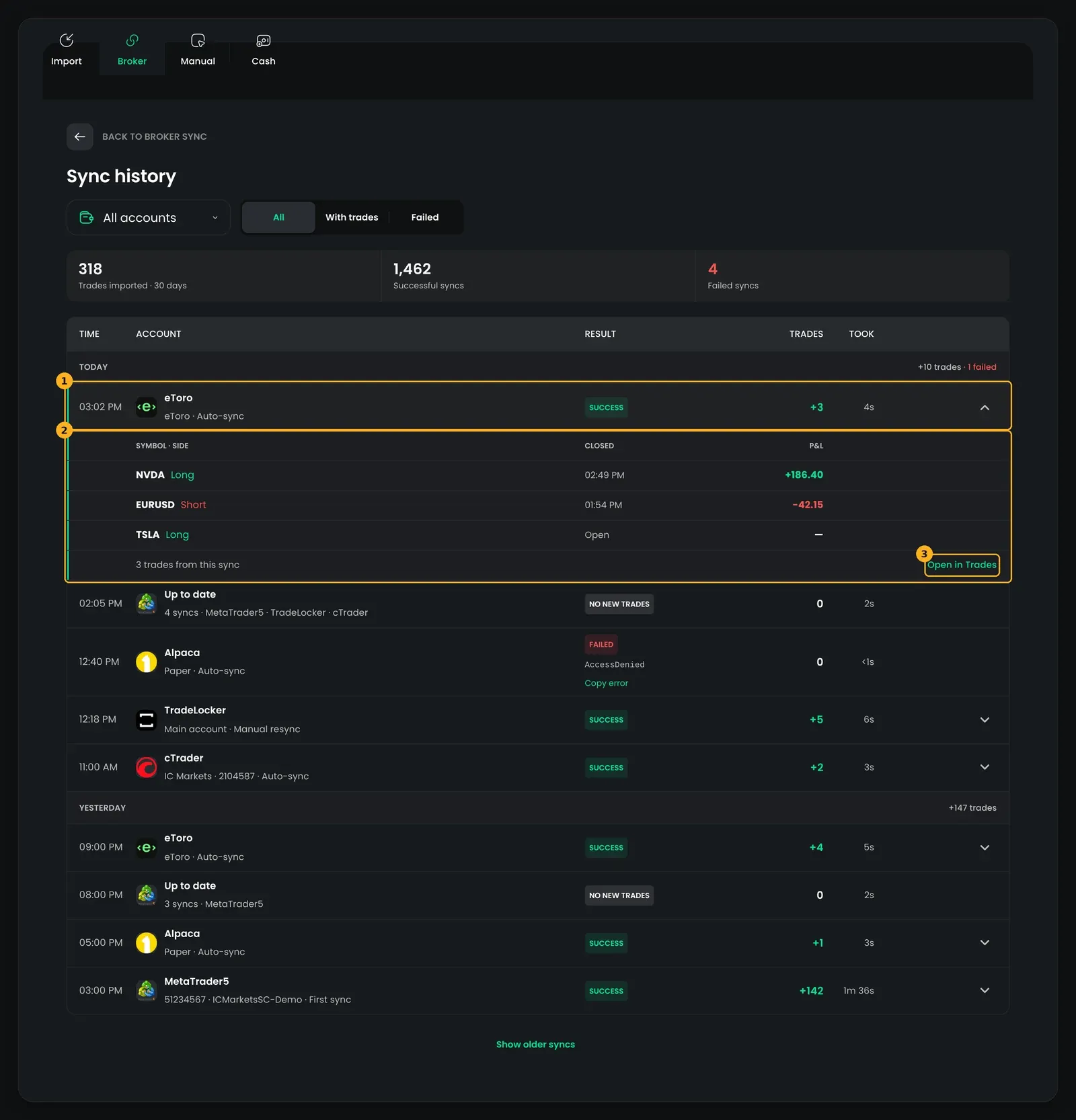
If a sync imported many trades, the list shows the most recent ones (for example, Showing 6 of 40 trades).
When a sync failed
Section titled “When a sync failed”A failed sync shows Failed and an error code.
- If the account still is not syncing, click Fix to open the account and reconnect it.
- Click Copy error to copy the error details. Paste them into a message to support if the problem continues.
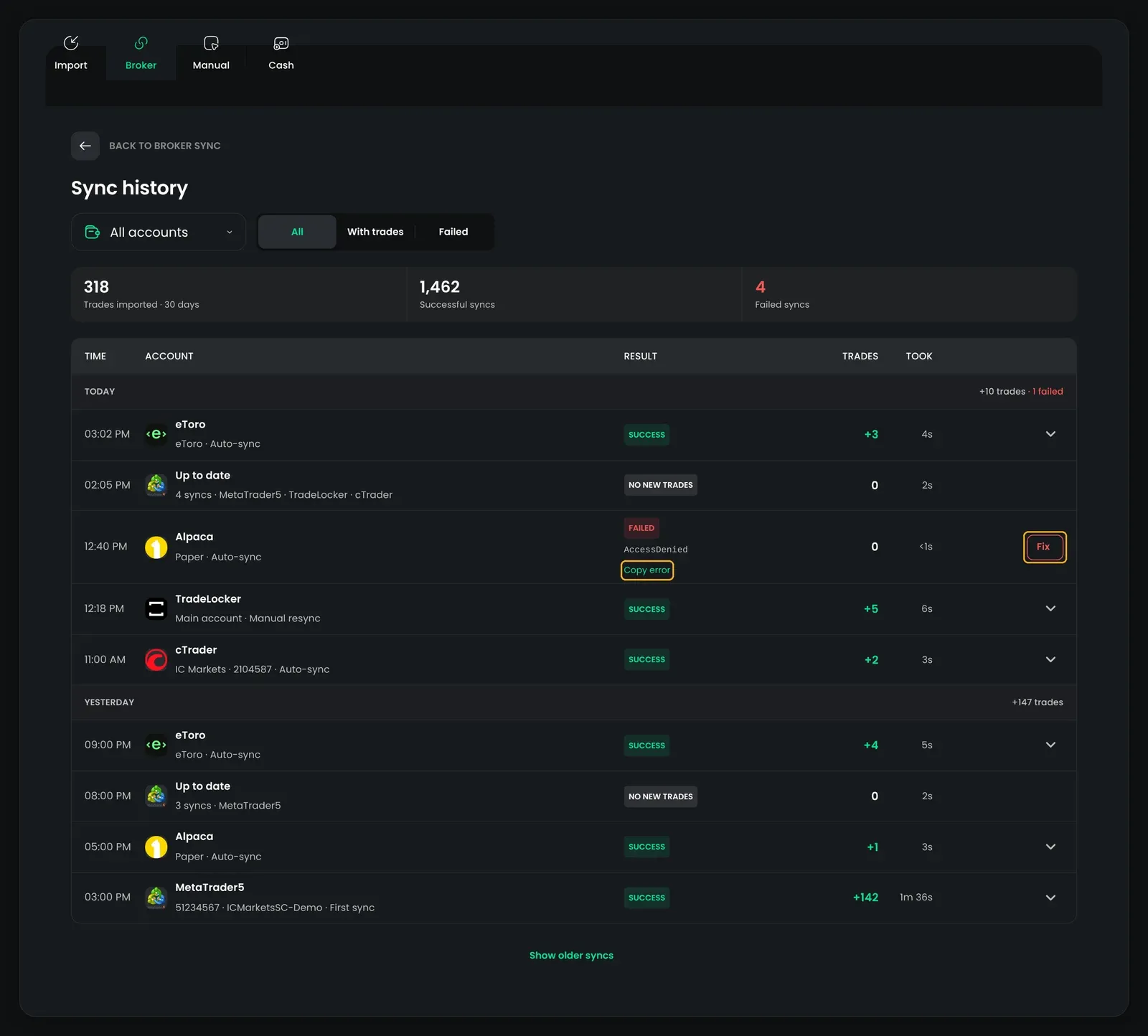
A sync that is still marked as running after 30 minutes is shown as Failed.
Troubleshooting
Section titled “Troubleshooting”| What you see | What to do |
|---|---|
| No syncs recorded yet | The account has not synced yet. Syncs appear here after the next sync. |
| A sync shows 0 trades but you expected some | The trades may have been updated, not added. Check the trade in your Trades list. |
| Several Failed syncs in a row | Open the account on the Broker Sync page and click Fix. |
| A trade from a sync is missing from the list | It may have been deleted from your journal since the sync. |