
AI Chat
AI Chat answers questions about your own trades. Ask in plain language, or pick a suggestion, and it replies with stats, short breakdowns, and the trades behind them. It only reads your journal: it cannot add, edit, or delete trades.
Open AI Chat
Section titled “Open AI Chat”Open the AI Chat page, or click AI Chat in the sidebar. On a phone, tap AI Chat in the bottom bar.
AI Chat needs at least 10 trades to analyze. With fewer, the page asks you to log more trades and shows an Add trade button.
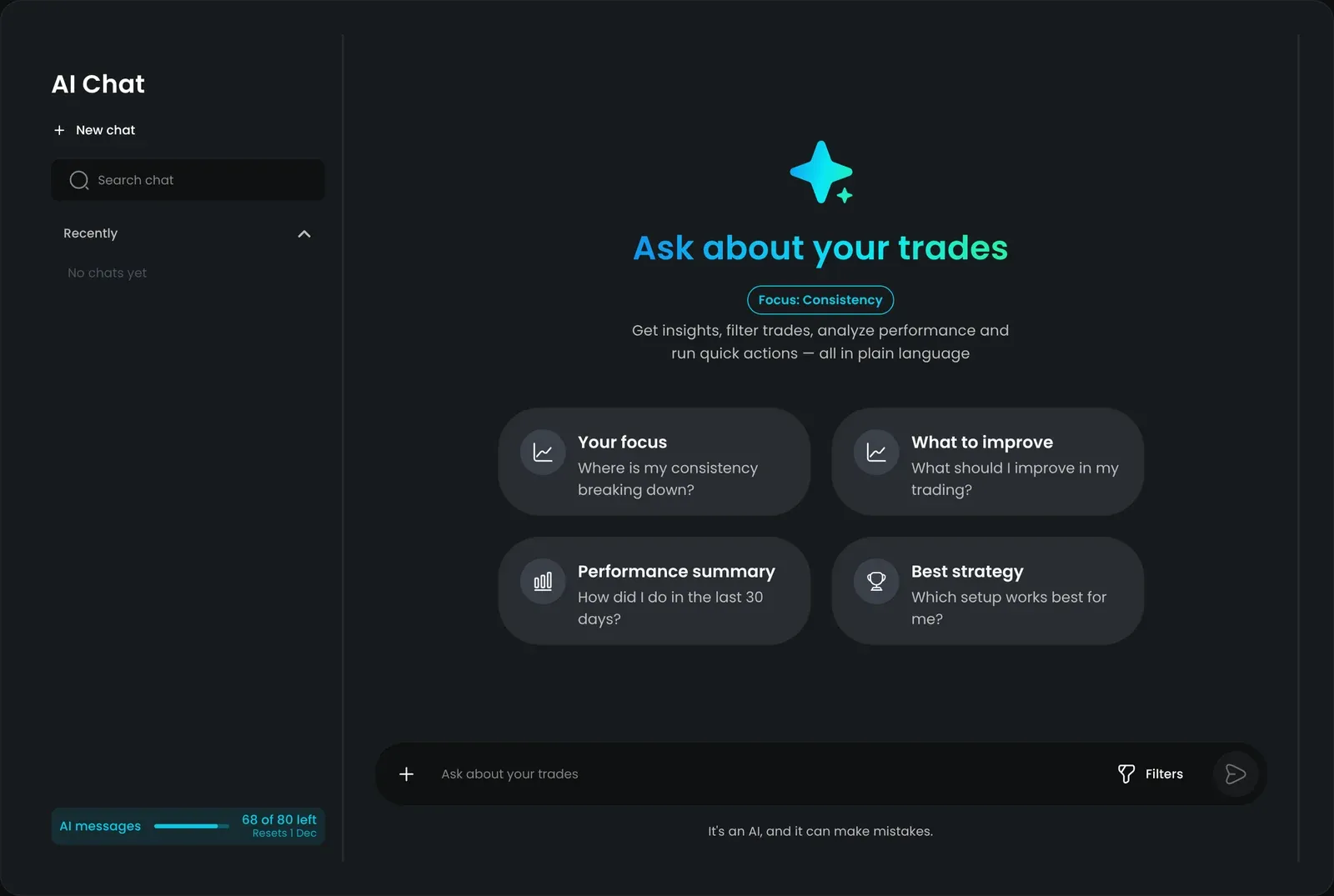
Ask a question
Section titled “Ask a question”Step 1: Click New chat.
Step 2: Pick a suggestion card, or type your question in Ask about your trades.
Step 3: Press Enter or click Send. On a phone, tap Send (Enter adds a new line).
While it works, AI Chat shows what it is doing, such as Loading your trades… or Comparing setups…. The answer appears as it is written.
Suggestion cards
Section titled “Suggestion cards”A new chat shows these suggestions:
- What to improve — “What should I improve in my trading?”
- Performance summary — “How did I do in the last 30 days?”
- Best strategy — “Which setup works best for me?”
- Missing stops — “Show trades with no stop loss”
If you set a main goal during onboarding, a Your focus card comes first (for example “Where is my consistency breaking down?”), and a Focus chip shows your goal.
Commands
Section titled “Commands”Type / in the message box, or click +, to open the command list:
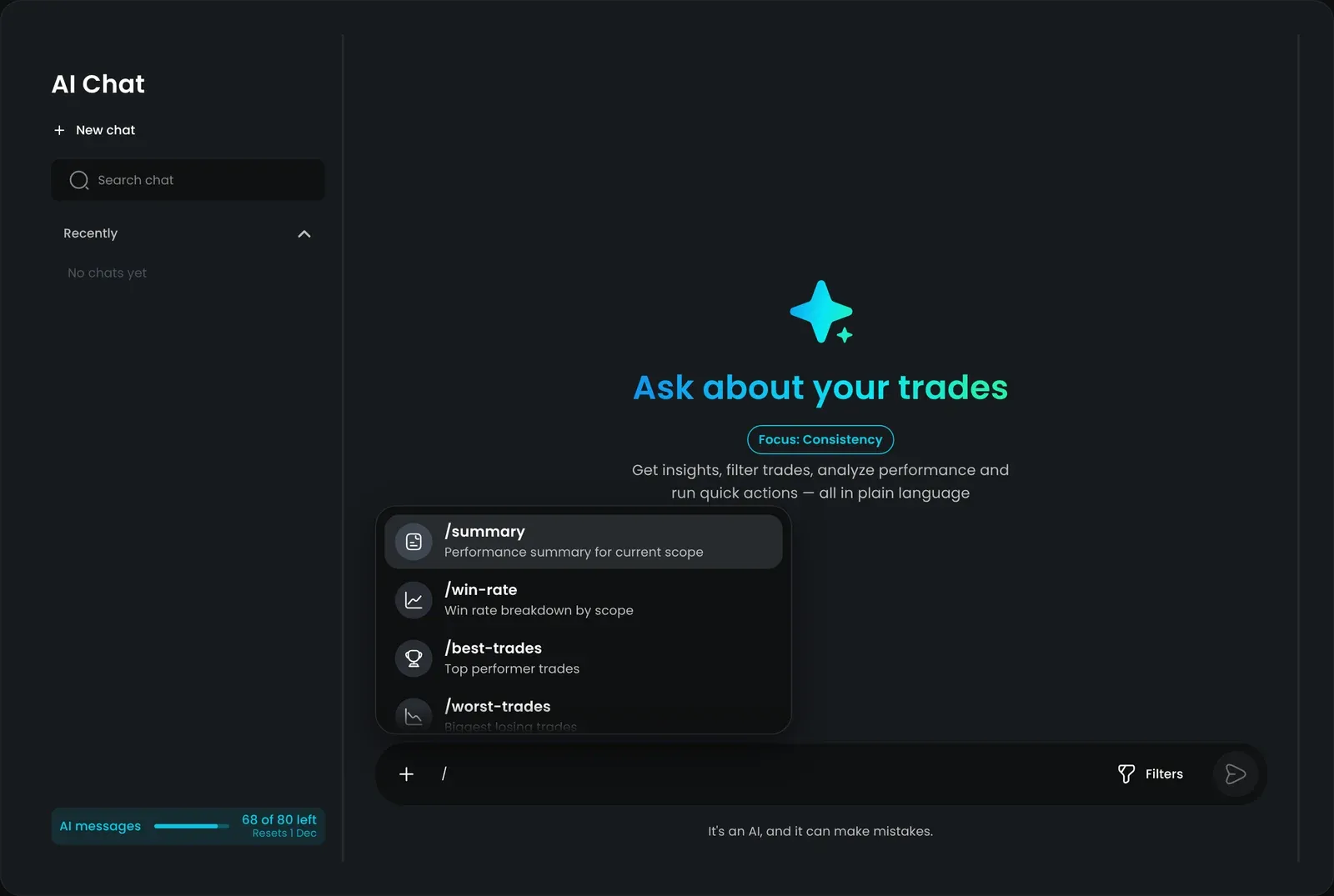
| Command | What it does |
|---|---|
| /summary | Performance summary for current scope |
| /win-rate | Win rate breakdown by scope |
| /best-trades | Top performer trades |
| /worst-trades | Biggest losing trades |
| /risk-reward | R:R distribution & averages |
| /best-strategy | Best and worst setups |
| /missing-stops | Trades without a stop |
| /compare | This month vs last month |
| /filter | Open the filter builder |
Use the arrow keys to move through the list and Enter to pick a command. /filter is not shown on phones; use the Filters button instead.
Example questions
Section titled “Example questions”- “Which strategy performed best and worst in the current scope?”
- “Show my worst trades in the current scope and common mistakes.”
- “Where did I break my rules this week?”
- “Which trades look emotional or rushed?”
After an answer, AI Chat may offer follow-up chips such as Show my biggest losses, Break down by symbol, or Compare this month vs last month.
What AI Chat can see
Section titled “What AI Chat can see”AI Chat only reads trades from your own journal, limited to the trades in the chat’s scope (see Choose which trades to analyze). It can look at:
- Performance: net P&L, win rate, averages, hold times, long/short mix, commissions, profit factor, largest win and loss, and realized R:R
- Strategies: results by strategy
- Tags: results by tag category, including tags you created
- Symbols: results by symbol
- Dates: results by weekday or by calendar month
- Strategy rules: how often you followed your strategy rules, and which rules you miss most
- Individual trades: strategy, tags, an excerpt of your trade note, R:R, hold time, and missed rules
Win rate and net P&L in the headline numbers count closed trades only.
When an answer lists trades (for example best trades, worst trades, or trades with no stop), they appear as trade cards under the reply. Click a card to open the trade.
AI Chat replies in your app language. If you write in a different language, it replies in that language.
AI Chat does not give financial advice. It is an AI, and it can make mistakes, so check important numbers against your reports.
Choose which trades to analyze
Section titled “Choose which trades to analyze”By default, AI Chat looks at your whole journal. To narrow it down, click Filters next to the message box.
The Filters panel has two tabs:
- Parameters — filter by Account, Type, Symbol, Status, Reviewed, Results, Side, Strategy, and Period (presets such as Last 7 days, Last 30 days, or This month & last)
- Trades — search for and select specific trades (up to 50)
You can use one tab at a time. Switching tabs clears the other tab’s filters.
The panel shows how many trades match. You need at least 10 matching trades to analyze. Click Apply to use the filters.
When a chat has a scope, the Data in scope panel shows Trades, Net P&L, Win rate, your filters, and the list of trades in scope.
Scope is locked after the first answer
Section titled “Scope is locked after the first answer”Once AI Chat has answered in a chat, that chat’s trades are fixed. The Filters button is hidden and you see Scope is locked for this chat. To analyze different trades, click Start a new chat to analyze different trades., or click New chat.
Periods with no trades
Section titled “Periods with no trades”If you pick a period with no trades, or fewer than 10, AI Chat tells you and offers wider options: Last week, Last 30 days, or Full journal.
Chat history
Section titled “Chat history”Your chats are saved and listed in the left panel under Recently. Each chat is named after your first message. On phones and tablets, tap the list icon at the top to open Chats.
From the history list you can:
- Click New chat to start over
- Use Search chat to find an earlier chat
- Click a chat to open it again
- Open the ⋯ menu on a chat and choose Pin (moves it to Pinned), Unpin, or Delete
Under each assistant reply you can also Copy the answer, or click Export response to download it as a Markdown file.
Monthly message limits
Section titled “Monthly message limits”Each message you send to AI Chat counts toward a monthly limit. This includes suggestion cards and commands.
| Plan | AI Chat messages per month |
|---|---|
| Free | 10 |
| Basic | 80 |
| Pro | 200 |
- Check your balance: The bottom of the history panel shows AI messages, how many are left (for example “6 of 10 left”), and when it resets. The Membership page also shows AI messages used.
- Reset: The limit resets at the start of each calendar month, in the timezone set in Global settings.
- Failed answers do not count: If AI Chat cannot finish an answer, the message is not counted.
- When you hit the limit: The message box is disabled and shows You’ve reached your monthly limit · resets with the date. On Free and Basic, click Upgrade for a higher monthly limit to see plans. See Membership.
Troubleshooting
Section titled “Troubleshooting”| What you see | What to do |
|---|---|
| ”Log at least 10 trades, then ask about your performance in plain language.” | AI Chat needs 10 trades. Add trades or import them. |
| ”Your filters match N trades. Widen them to analyze” | Click Open Filters and widen the period or remove a filter. |
| Filters button is missing | The chat is locked to its trades after the first answer. Click New chat. |
| ”The assistant is still working on this chat. Try again in a moment.” | Wait for the current answer to finish, then send again. |
| ”Something went wrong. Please try again.” | Click Retry under your message. |
| ”AI Chat is currently unavailable. Please try again later.” | AI Chat is temporarily turned off. Try again later. |
| ”You’ve reached your monthly message limit.” | Wait for the reset date, or upgrade your plan on Membership. |
Prefer your own AI app? You can connect Claude or ChatGPT to your TradeReview journal instead. See Connect AI assistants.