
Discipline report
How to use this page
Section titled “How to use this page”Open Reports → Discipline (Discipline). Use it to check how closely you traded to plan, find the habit that breaks most often, and jump straight to the trades behind it.
The report uses your closed trades only. It follows the account selector and the date range in the header. Other trade filters do not apply here.
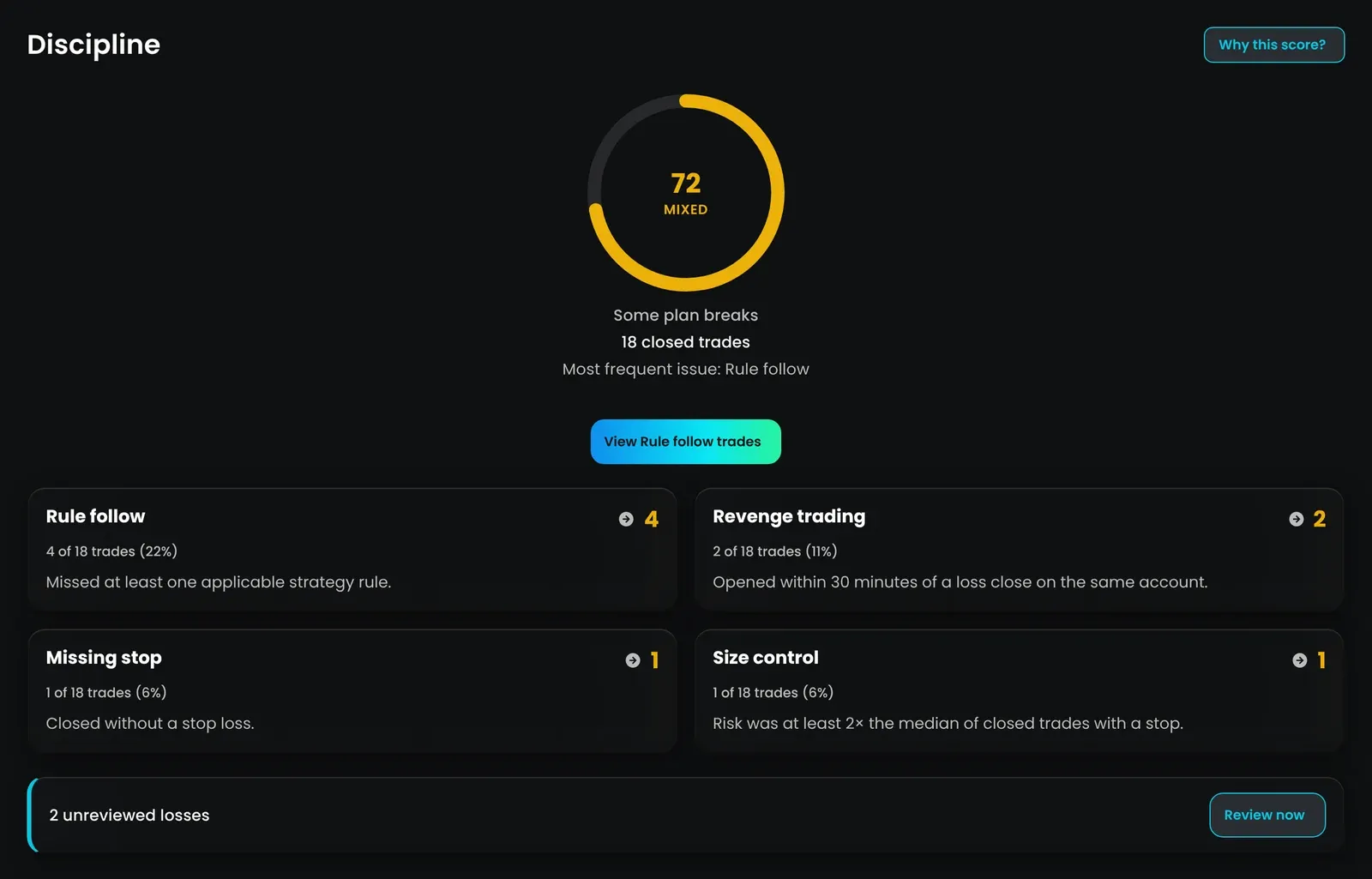
You can also add the Discipline widget to your dashboard. It shows the same score and drivers for your current date range. Select the widget title to open the full report.
- Free — the report covers your Last session: the calendar day of your most recent closed trade (in your time zone), for the selected accounts. The date range selector is hidden, and a Last session badge with the Basic tag shows the date.
- Basic and Pro — pick any date range, and use Why this score? (AI Explain).
Selecting the Last session badge or Why this score? on Free opens the upgrade window. See Membership.
Discipline score
Section titled “Discipline score”The ring at the top shows a score from 0 to 100, a band, and the number of closed trades in the range.
| Score | Band | Subtitle |
|---|---|---|
| 80–100 | Disciplined | Mostly on plan |
| 50–79 | Mixed | Some plan breaks |
| 0–49 | Off plan | Frequent plan breaks |
Below the ring, Most frequent issue names the driver with the most flagged trades. Use View [driver] trades to open those trades.
How the score is calculated
Section titled “How the score is calculated”- Each driver gets its own score: 100 × (1 − flagged trades ÷ trades checked for that driver). For Rule follow, the driver score is your average rule adherence instead.
- Drivers have relative weights: Revenge trading 30, Size control 25, Rule follow 25, Loss beyond plan 25, Missing stop 20.
- Drivers without enough data are left out, and the weights of the included drivers are scaled so they add up to 100.
- The score is the weighted average, rounded to a whole number.
You need at least 3 closed trades for a score. With 1–2 closed trades, the ring shows — and Getting started (“Need 3 closed trades for a full score”), and only drivers that already flagged a trade are listed.
Drivers
Section titled “Drivers”Each driver card shows the number of flagged trades, the share of your closed trades (for example, “3 of 20 trades (15%)”), and a short definition.
| Driver | A trade is flagged when… | Needs |
|---|---|---|
| Revenge trading | It opened within 30 minutes after a losing trade closed on the same account | Any closed trades |
| Size control | Its risk was at least 2× the median risk of closed trades with a stop | 5 closed trades with a stop |
| Missing stop | It closed without a stop loss | Any closed trades |
| Rule follow | At least one applicable strategy rule was not checked | An assigned strategy with applicable points |
| Loss beyond plan | It lost more than the risk planned at the stop (beyond −1.1R) | 5 closed trades with a stop |
When a driver is left out, a note under the cards says why — for example, “Size control needs 5 trades with a stop.”
Rule follow
Section titled “Rule follow”Rule follow uses your strategy rules. For each closed trade with a strategy assigned, it counts the points that apply to that trade’s result (based on Show when). A trade is flagged if any applicable point is unchecked — including trades where you did not check any points. The driver score is the average share of applicable points you checked.
What a driver cost you
Section titled “What a driver cost you”When a driver has flagged trades and other closed trades to compare against, the card adds a cost line:
“Avg [flagged] per trade vs [other] on the rest · win rate [x]% vs [y]%”
It compares the average net P&L and win rate of the flagged trades with all your other closed trades in the range. The line is highlighted when the flagged trades averaged less than the rest.
Open the flagged trades
Section titled “Open the flagged trades”Select a driver card with at least one flagged trade. TradeReview opens Trades filtered to that driver, with the same accounts and dates. The filter appears as Driver under the Discipline filter tab.
Unreviewed losses
Section titled “Unreviewed losses”If losing trades in the range have not been reviewed, the report shows “N unreviewed losses”. Select Review now to start a review session with those trades (up to 50).
Why this score?
Section titled “Why this score?”Select Why this score? (or Why these flags? when there is no score yet) to open AI Chat with the same accounts and date range. It asks the assistant to explain your discipline drivers. Available on Basic and Pro.
Rule alerts on the calendar
Section titled “Rule alerts on the calendar”The calendar can mark days with plan breaks. Three of these alerts come from the same checks as this report: Revenge trading, Oversized risk, and Missing stop loss. A flagged trade marks the day it closed.
To turn rule alerts on or off:
Step 1: Open Calendar.
Step 2: Select the settings (gear) icon in the calendar toolbar.
Step 3: Under Rule alerts, check or uncheck Mark days that break my rules. Rule alerts are on by default, including a daily loss limit of 500 and a maximum of 10 trades per day — change these to your own limits. Below it, choose which alerts to show:
- From the app — Strategy rules (unchecked rules on reviewed trades), Revenge trading, Oversized risk, Missing stop loss
- Your daily limits — Daily loss limit (day P&L reached the limit you set) and Max trades per day (more trades than the limit you set)
Flagged days get an orange marker, and the day details list the rule breaks. Rule alert settings are saved in your browser, so set them on each device you use.
Rule alerts on the calendar are available on Basic and Pro. On Free, the Rule alerts settings show the Basic tag and open the upgrade window.
- Set a stop loss on your trades. Size control and Loss beyond plan need at least 5 closed trades with a stop before they count.
- Assign strategies and check rules on each trade so Rule follow is included — Strategy rules
- Start with the Most frequent issue. Open its trades, review a few, and note what triggered the break.
- Watch the cost line. A driver that flags often but costs little matters less than one that drags your average down.
- Clear unreviewed losses with Review now before you read the score.