
Review sessions
A review session takes you through your closed trades that are not reviewed yet, one trade at a time. On each trade you add notes, tags, and checked strategy rules, then click Mark as reviewed to move on. When no unreviewed trades are left, the session ends.
Reviewing matters beyond the session. On the calendar, strategy rule checks only count on reviewed trades, and the Discipline report lists your unreviewed losses.
Which trades are included
Section titled “Which trades are included”- Only closed trades that are not reviewed. Open trades are never part of a session.
- Only trades in the accounts you have selected in the account filter.
- Newest trades first.
- A session started from the calendar only includes trades opened or closed on that day (or in that week).
Start a session
Section titled “Start a session”Step 1: Open Trades.
Step 2: Click Start review at the top of the page. The button only appears when you have at least one closed, unreviewed trade.
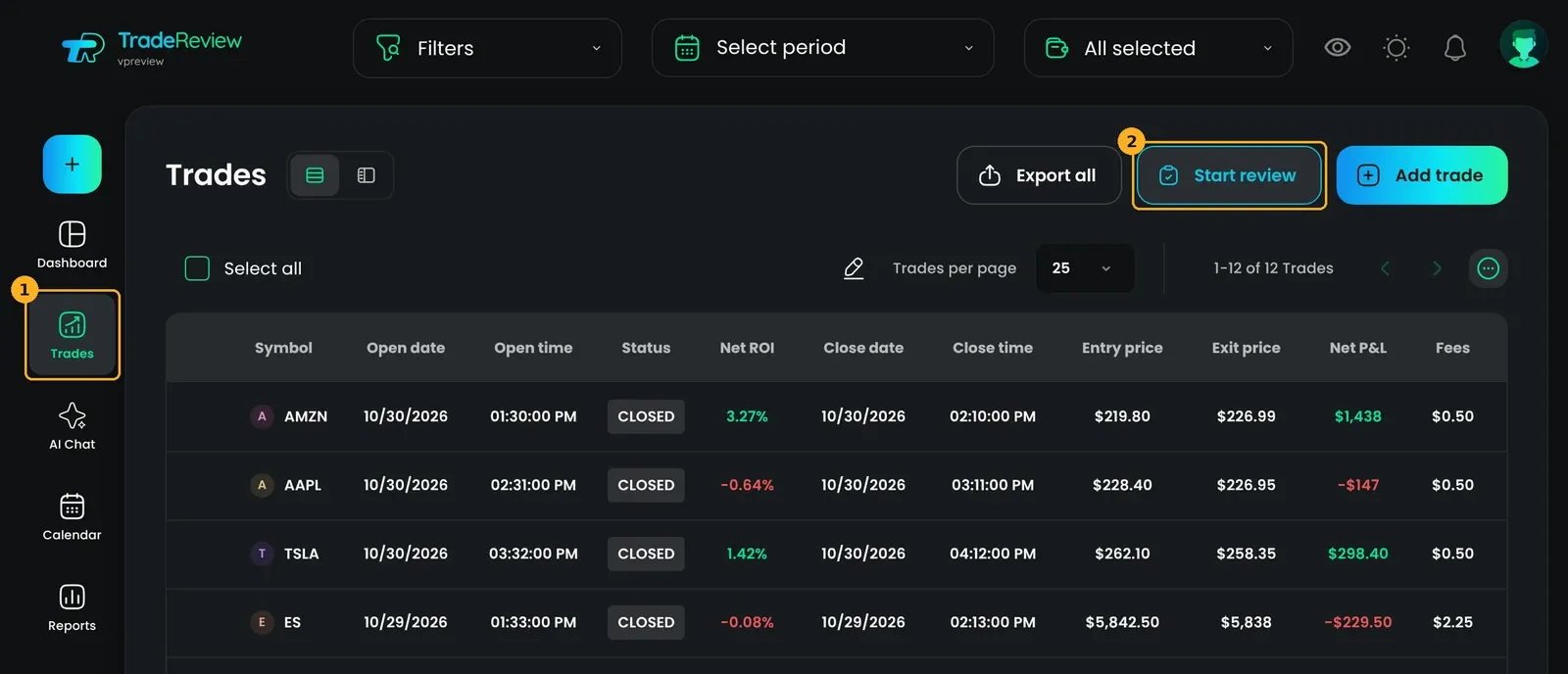
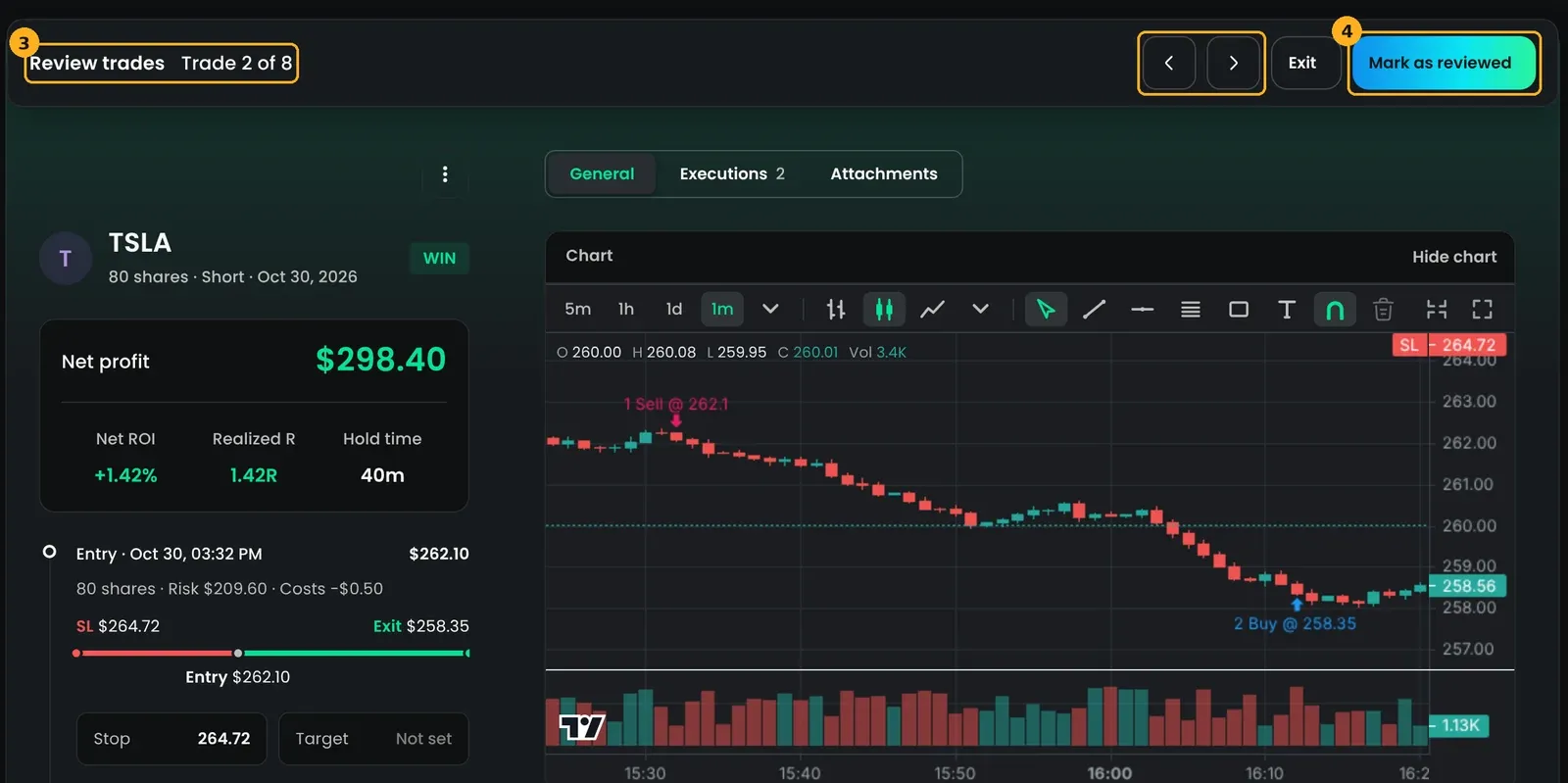
Step 3: The first trade opens in review mode. The toolbar at the top shows Review trades and your progress, for example Trade 1 of 12.
You can also start a session from:
- Calendar day: open a day and click Start review. The session only covers that day.
- Calendar week: in the weekly summary beside the month grid, click N to review. The session covers that week.
- Dashboard: the Get set up checklist has a Review 3 trades step with a Start review button.
- After a file import: click Start review on the last step.
- Discipline report: next to N unreviewed losses, click Review now. This session only includes those losing trades.
- Trade reminders: if you have reminders turned on and closed trades are waiting, the reminder says how many trades you have to review (across all your accounts). Tap it to start a session. See Notifications.
Review each trade
Section titled “Review each trade”Each trade opens on its normal trade page, so you have the same tools as in Viewing a trade. Notes and tags save automatically.
On the computer, the General tab shows:
- Chart — the trade on a price chart. Click a fill’s marker to write a note for that fill.
- Notes — your journal note for the trade, or a separate note for each fill.
- Tags — add mood, setup, mistake, or any custom tags.
- Strategy — assign a strategy and check the rules you followed.
The Executions and Attachments tabs work as usual.
Step 4: When you are done with the trade, click Mark as reviewed. The trade is marked as reviewed and the next trade opens.
Move between trades
Section titled “Move between trades”- Use the Previous trade and Next trade arrows in the toolbar to skip a trade without marking it. Skipped trades stay in the session.
- The progress counter (Trade N of M) goes up only when you mark a trade as reviewed.
Keyboard shortcuts
Section titled “Keyboard shortcuts”| Action | Keys |
|---|---|
| Previous trade | ← |
| Next trade | → |
| Mark as reviewed | R or Enter |
| Exit review | Esc |
Press ? anywhere to see all shortcuts. Shortcuts only work on a computer.
Finish a session
Section titled “Finish a session”When you mark the last trade as reviewed, you see All caught up with the number of trades you reviewed. Click Back to trades, or Back to calendar if you started from the calendar.
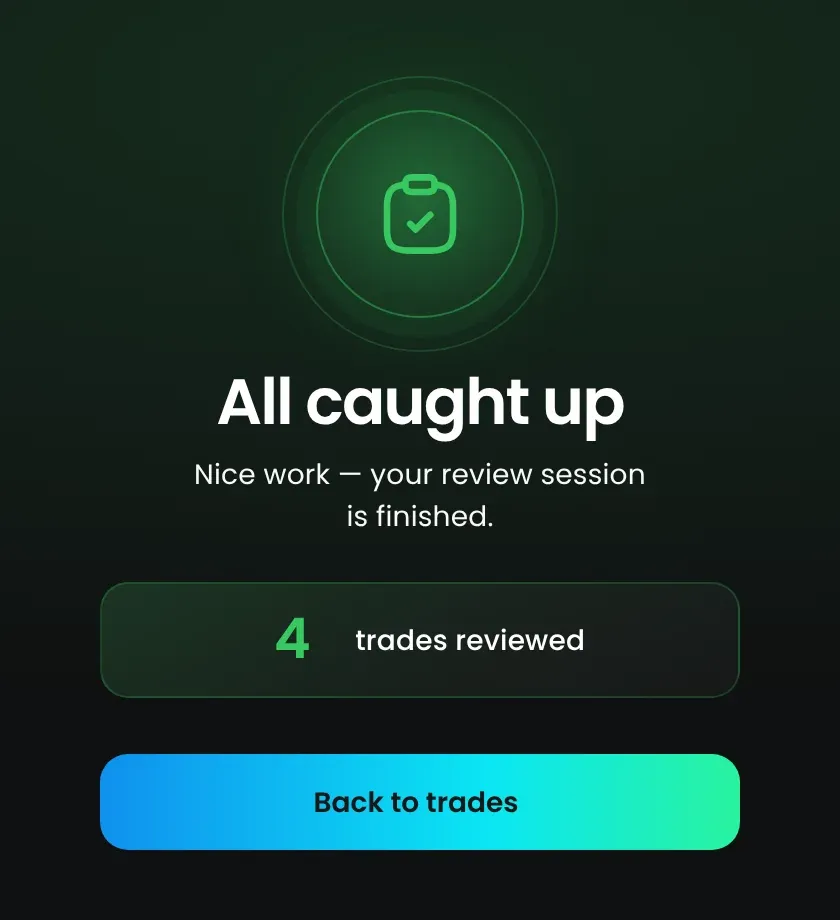
If there are no closed, unreviewed trades when you start, you see You’re all caught up instead.
On mobile
Section titled “On mobile”- The trade opens with three tabs: Review (chart, notes, tags, and attachments), Trade, and Strategy (rules).
- The bottom bar shows Trade N of M and the Mark as reviewed button. It hides while the keyboard or a dropdown is open.
- There are no previous/next buttons. Mark the trade as reviewed to move on.
- Tap the back arrow in the header to exit the session.
Mark a single trade as reviewed
Section titled “Mark a single trade as reviewed”You don’t need a session to review a trade. Open any trade:
- On the computer: click Mark as reviewed at the top of the trade summary column, next to the trade menu.
- On mobile: tap Mark as reviewed in the header, next to the trade menu.
The button then shows Reviewed. Click it again to mark the trade as not reviewed.
To mark several trades at once, select them on the Trades page and choose Mark as reviewed or Mark as not reviewed.
Find unreviewed trades
Section titled “Find unreviewed trades”- Trades table: the Reviewed column shows whether each trade is reviewed. On mobile, reviewed trades have a Reviewed label.
- Filters: open Filters and set Reviewed to Reviewed or Not reviewed.
- Preview view (computer): on the Trades page, switch to Preview view and open the To review tab. Press R to mark the selected trade as reviewed.
- Calendar: day details show Start review and the weekly summary shows N to review when there are unreviewed trades.
Troubleshooting
Section titled “Troubleshooting”| What you see | What to do |
|---|---|
| No Start review button on Trades | You have no closed, unreviewed trades in the selected accounts. Check the account filter. |
| You’re all caught up right after starting | Same as above: nothing is left to review for the selected accounts (or that calendar day or week). |
| An open trade is missing from the session | This is expected. Only closed trades are included. You can still mark an open trade as reviewed from its trade page. |
| Discard changes? when you use a shortcut to move on | You have unsaved edits on the Executions tab. Click Keep editing to stay on the trade, or Discard to drop the edits and continue. |